

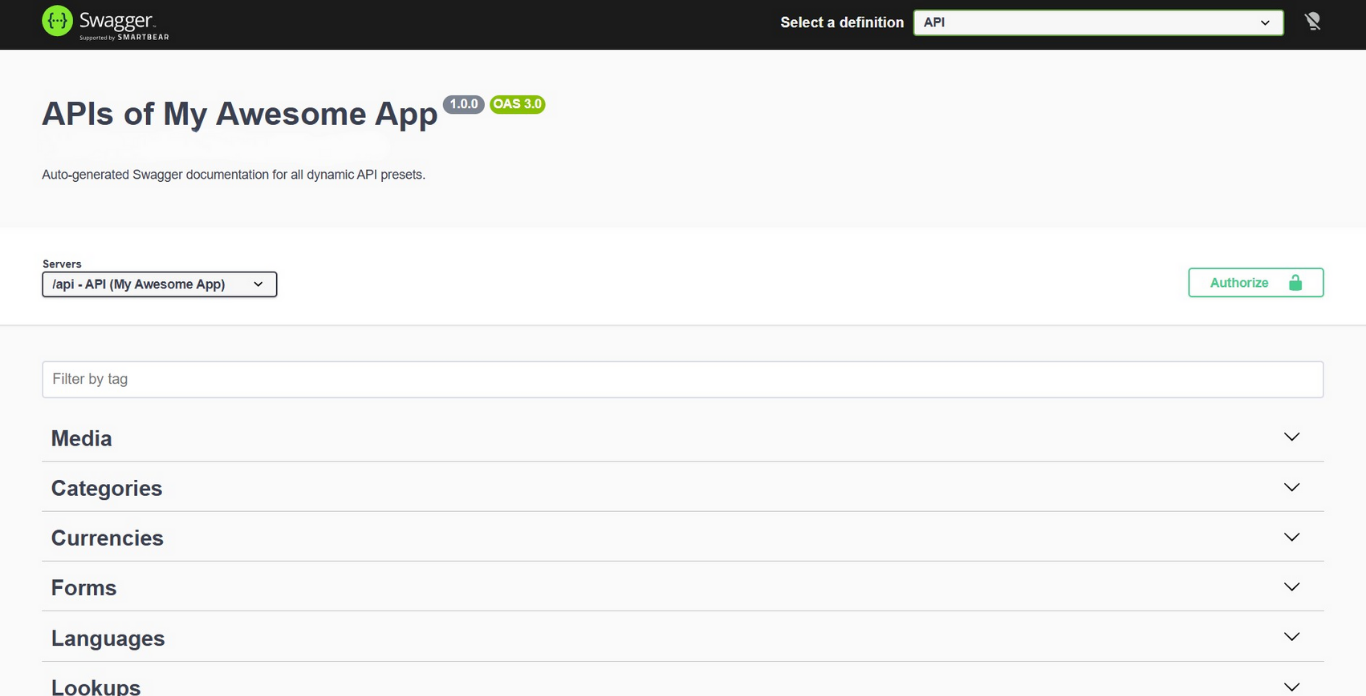
When you click on API Manager from the left-side navigation, you will see a list of all created APIs.
At the top-right of the page, you will find two buttons:
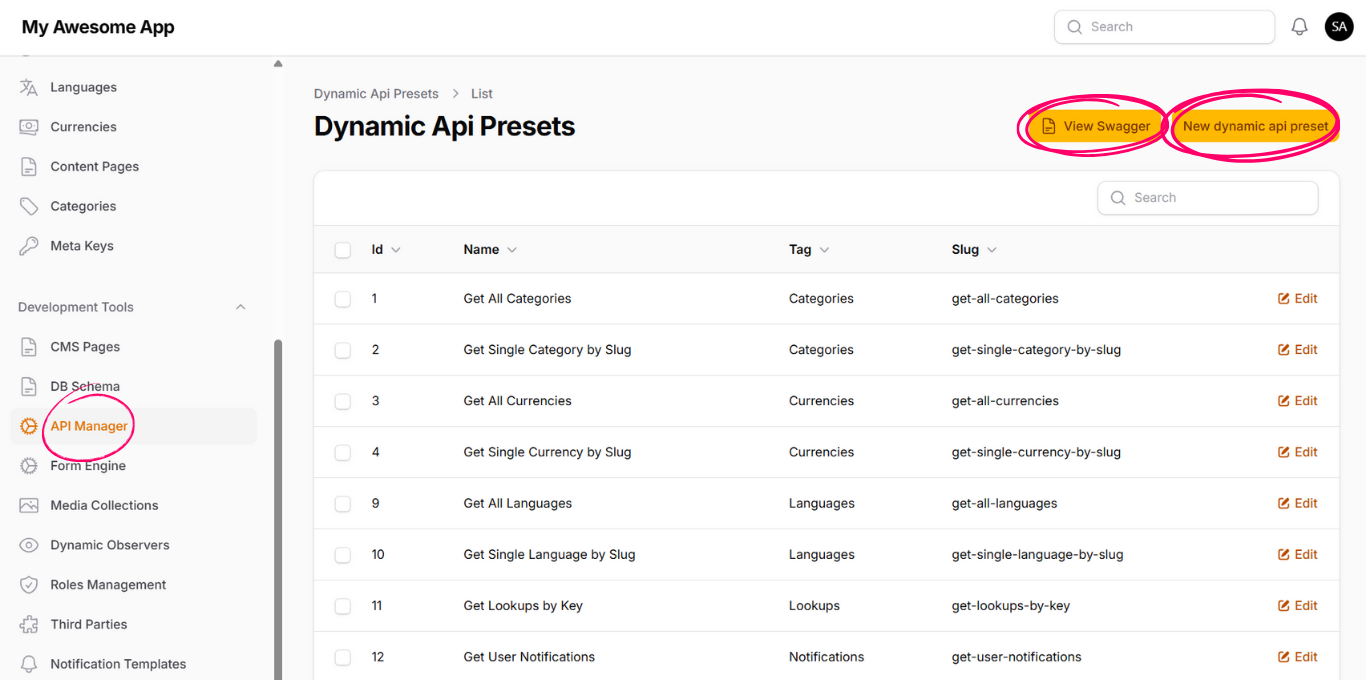
Swagger – Opens the Swagger page that documents all APIs for frontend developers.
Create Dynamic API – Opens the form to create a new API.
This tab contains the general information for the API.
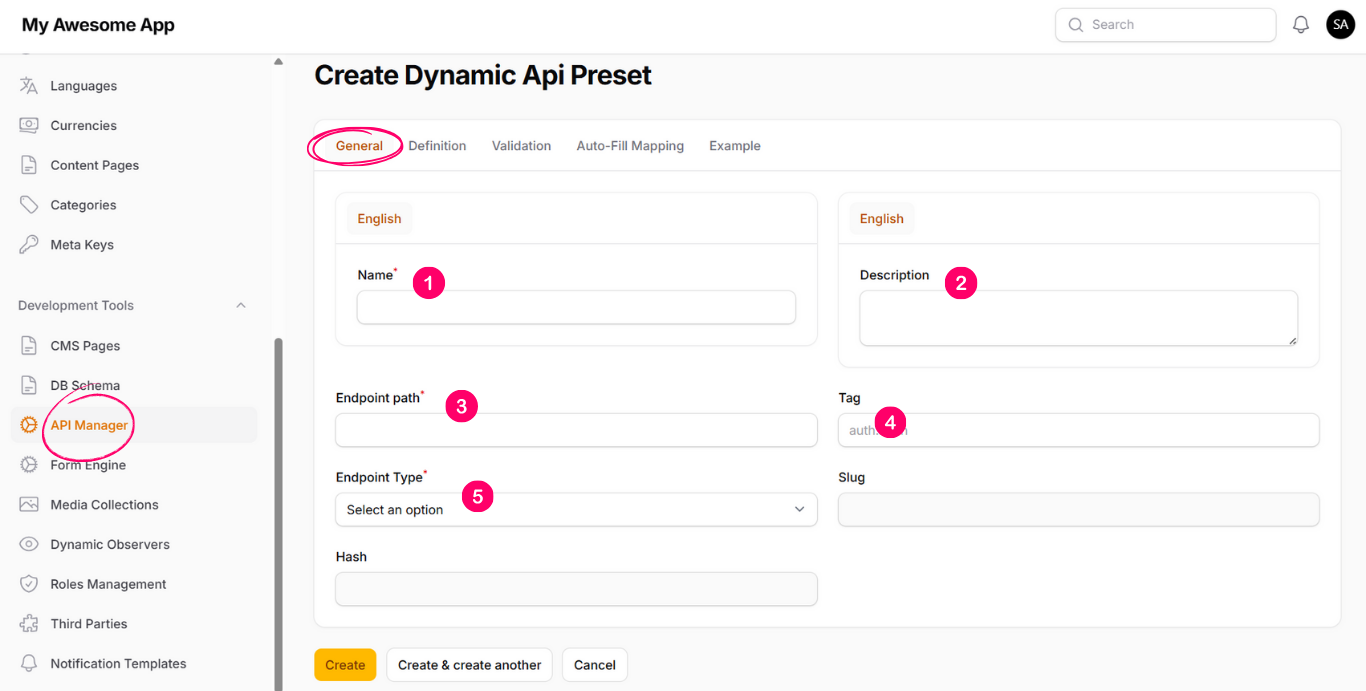
1. Name
The name of this API.
2. Description
A short description that will be useful for frontend developers and other team members.
3. Endpoint Path
Defines the API endpoint path.
Examples:
/items/getAll, /items/create, /items/getSingle, etc.
4. Tag
Used to group APIs in the Swagger API documentation.
5. Endpoint Type
Specifies the operation type that this API will perform.
This tab allows you to define the behavior and logic of the API based on the selected Endpoint Type from the General tab.
This tab works as a wizard and contains multiple steps.
Step 1: Source
Here you define the data source that the API will interact with.
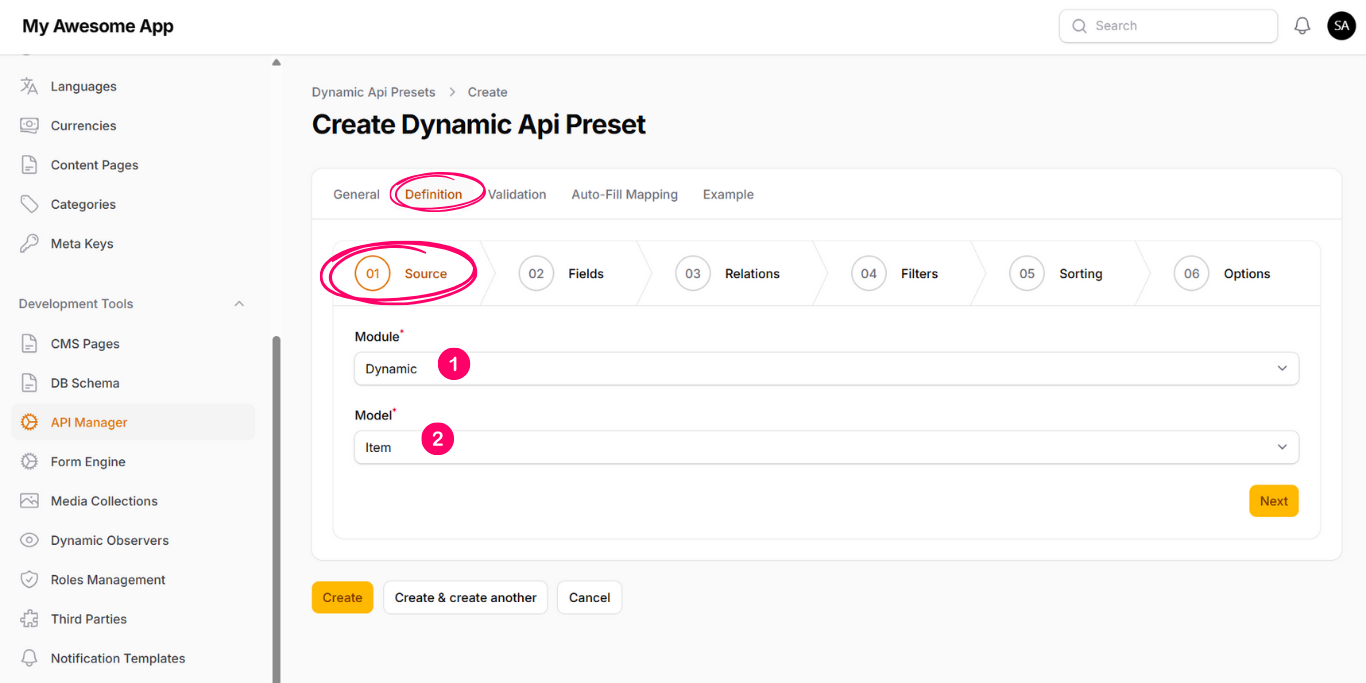
Module
Select one of the listed modules.
All dynamically created database tables and models will be under the Dynamic module.
Model
Select the data model that this API will interact with.
This endpoint type is used to retrieve data.
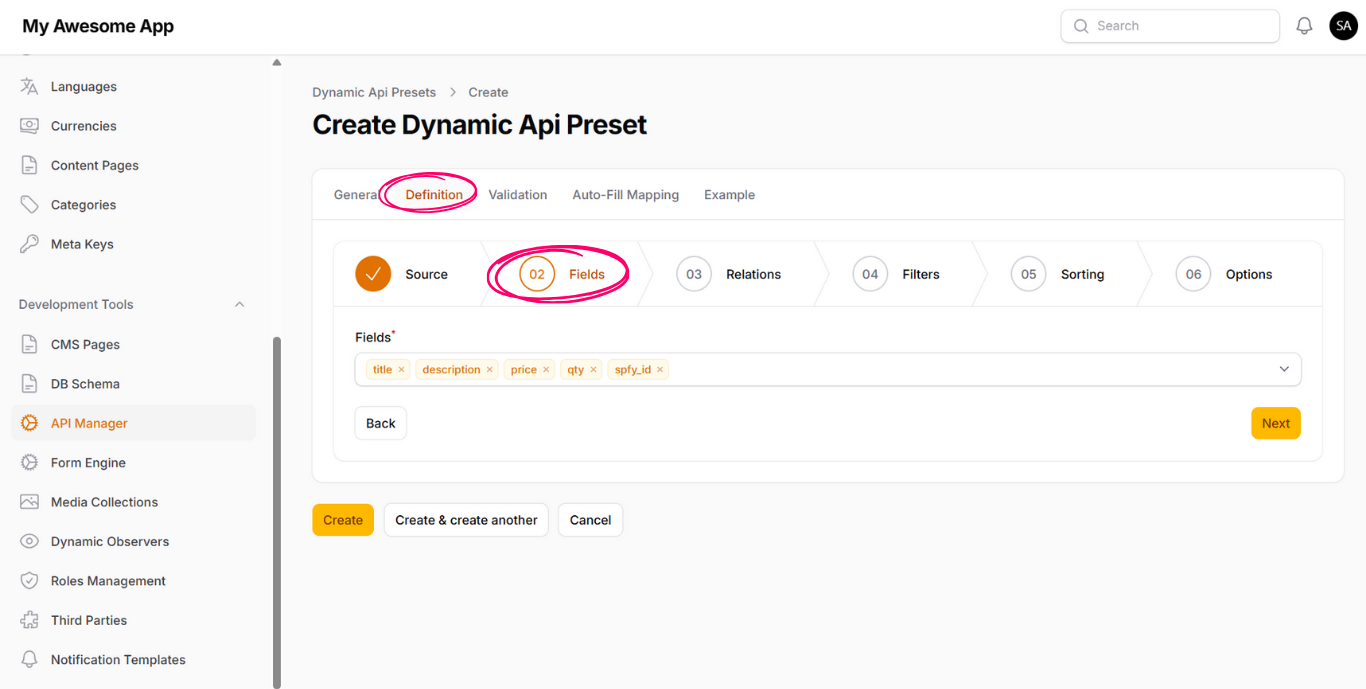
Step 2: Fields
In this step, you can select the fields that should be returned in the API response.
Step 3: Relations
In this step, you can select relations to be returned with the main data.
Nested relations are also supported.
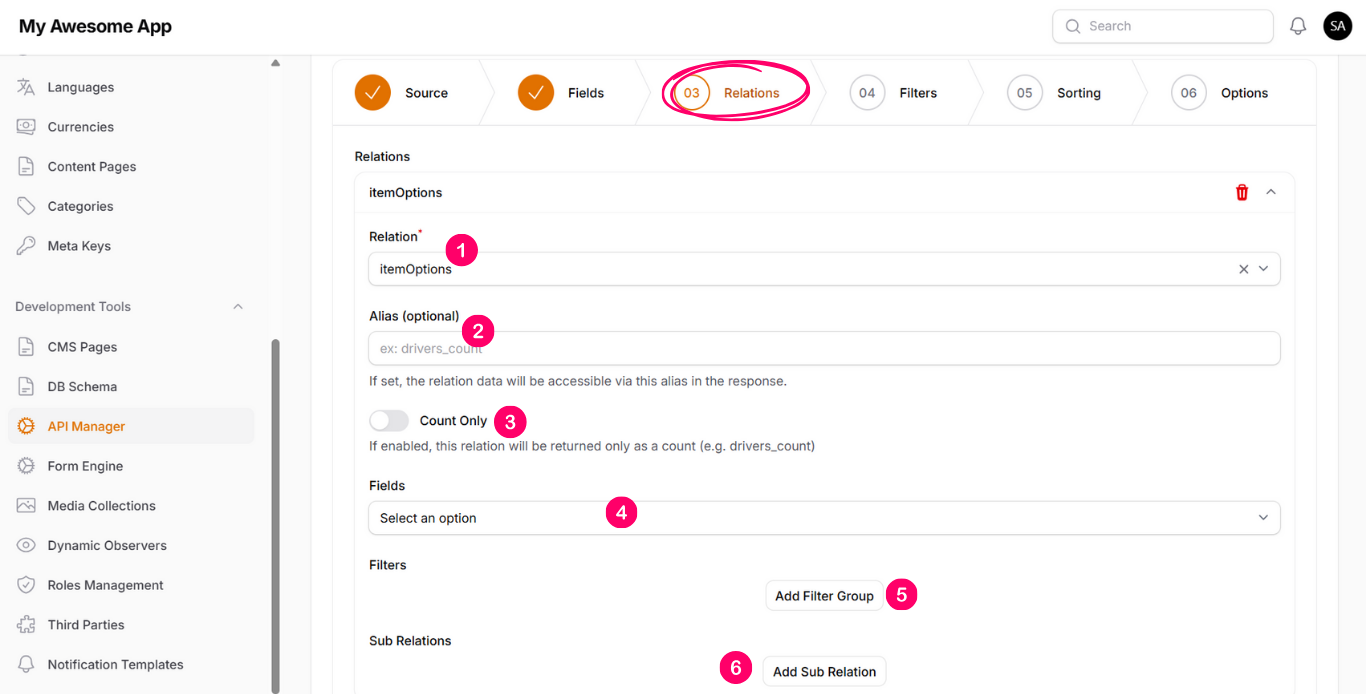
For each relation, you can configure the following:
1. Relation
Select the relation from the dropdown.
2. Alias (optional)
Allows you to return the relation with a custom name instead of its original name.
3. Count Only
If enabled, only the count of related records will be returned.
4. Fields
Select which fields should be returned from the relation.
(This option appears only if Count Only is disabled.)
5. Filters
Allows you to filter the data returned from this relation.
6. Sub Relations
Used to define nested relations, for example:
item → options → properties.
Step 4: Filters
This step allows you to filter the main model data returned by the API.
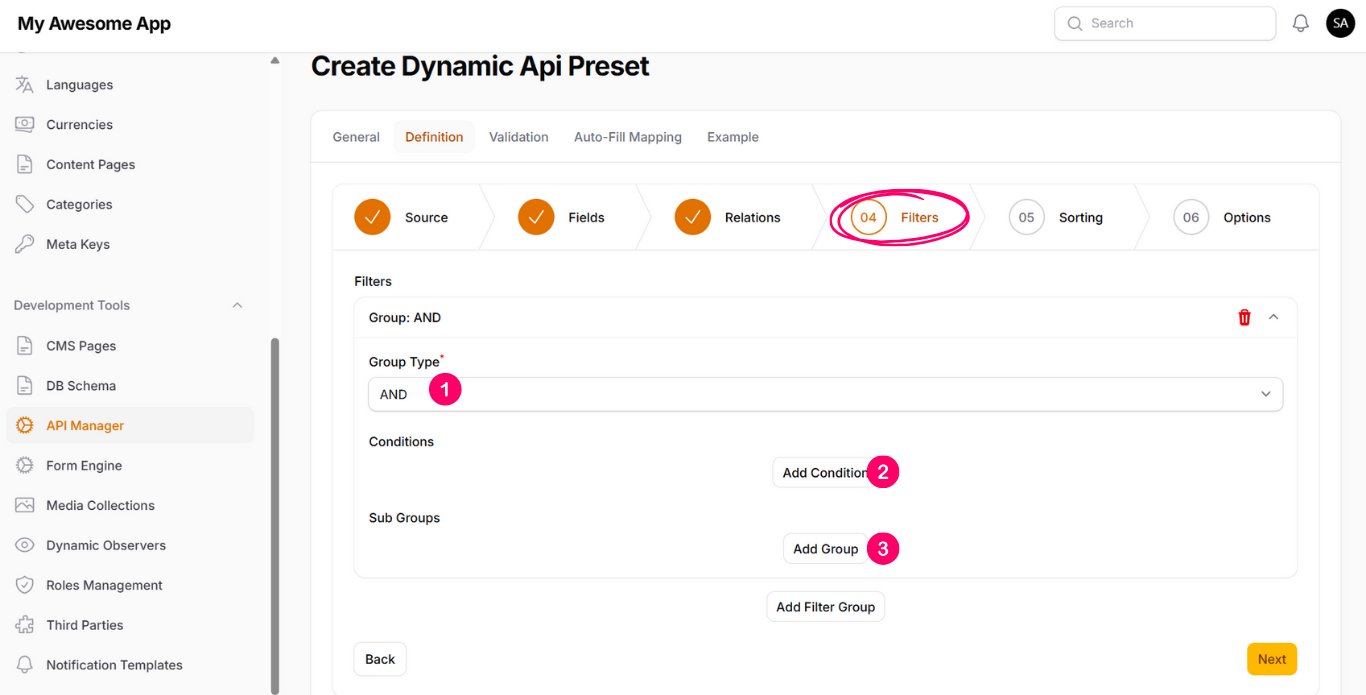
1. Group Type
Select AND or OR to define how the group of conditions should be evaluated.
2. Conditions
Each condition contains:
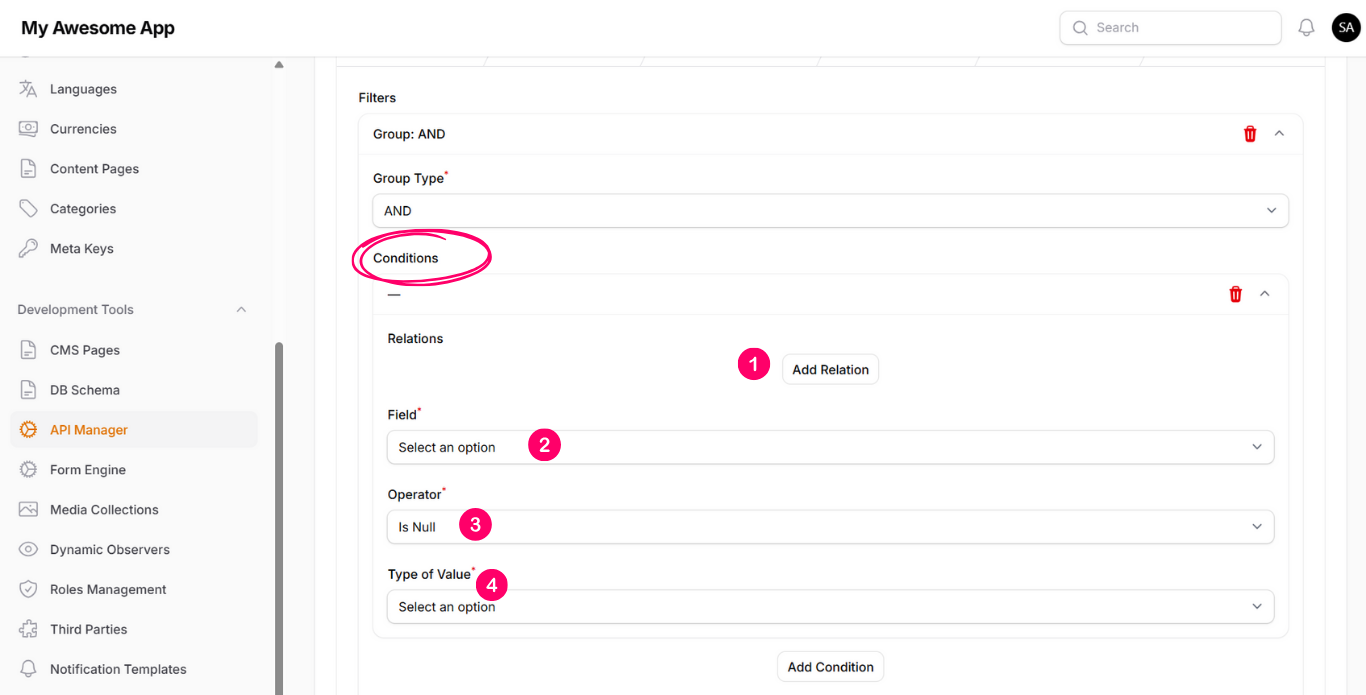
2.1 Relation (optional) – Filter main data based on a related model.
2.2 Field – The field used for filtering.
2.3 Operator – The comparison operator.
2.4 Type of Value – Select either Static or Dynamic.
2.4.1 Static Value
If selected, a Value input will appear to enter a fixed value.
2.4.2 Dynamic Value
If selected, a Dynamic Value Key input will appear.
This key must be passed in the request body, and the system will replace it dynamically during API execution.
3. Sub Groups
Used to create nested filter groups, for example:
(condition1 > value1) AND ((condition2 = value2) OR (condition3 = value3)).
Step 5: Sorting
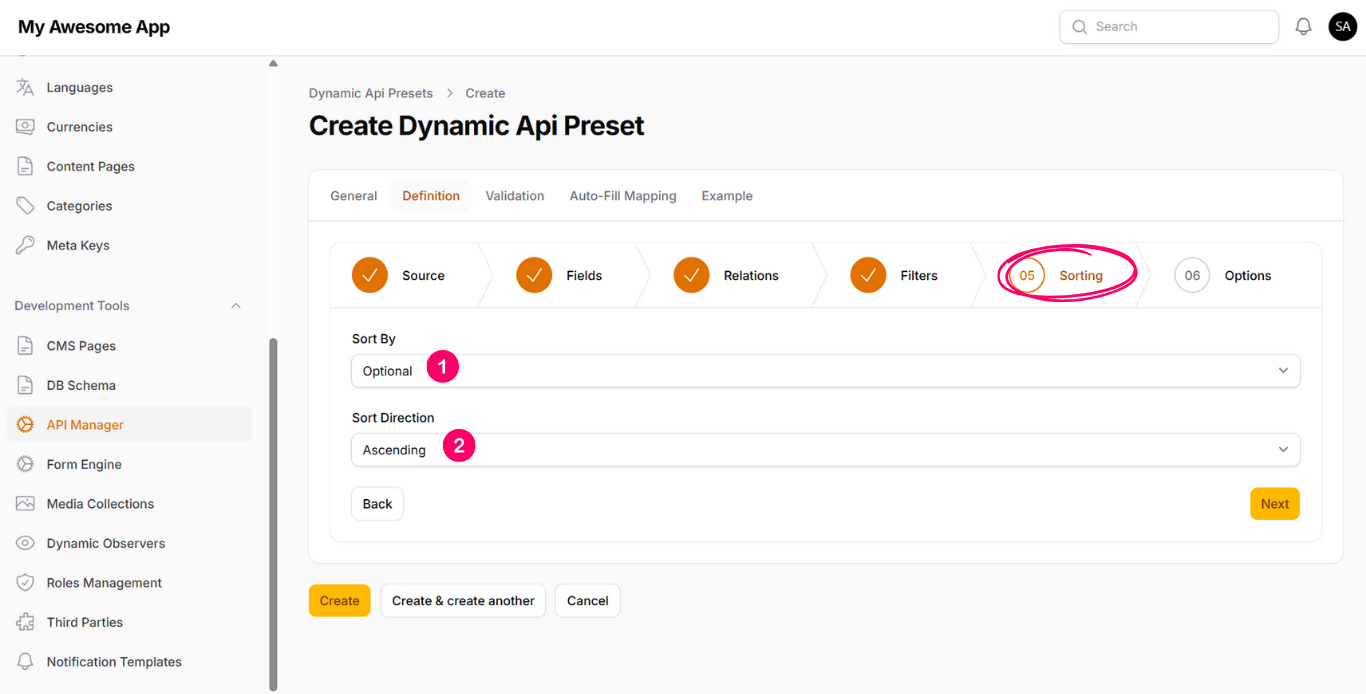
1. Sort By
Select the model field to sort by.
2. Sort Direction
Select Ascending or Descending.
Step 6: Options (Query)
1. Return Single Record
If enabled, the API will return a single object instead of a list.
This is useful for “Get Single Record” APIs.
2. Require Auth Token
If enabled, the API request will require an access token.
This endpoint type is used to create, update, or delete records.
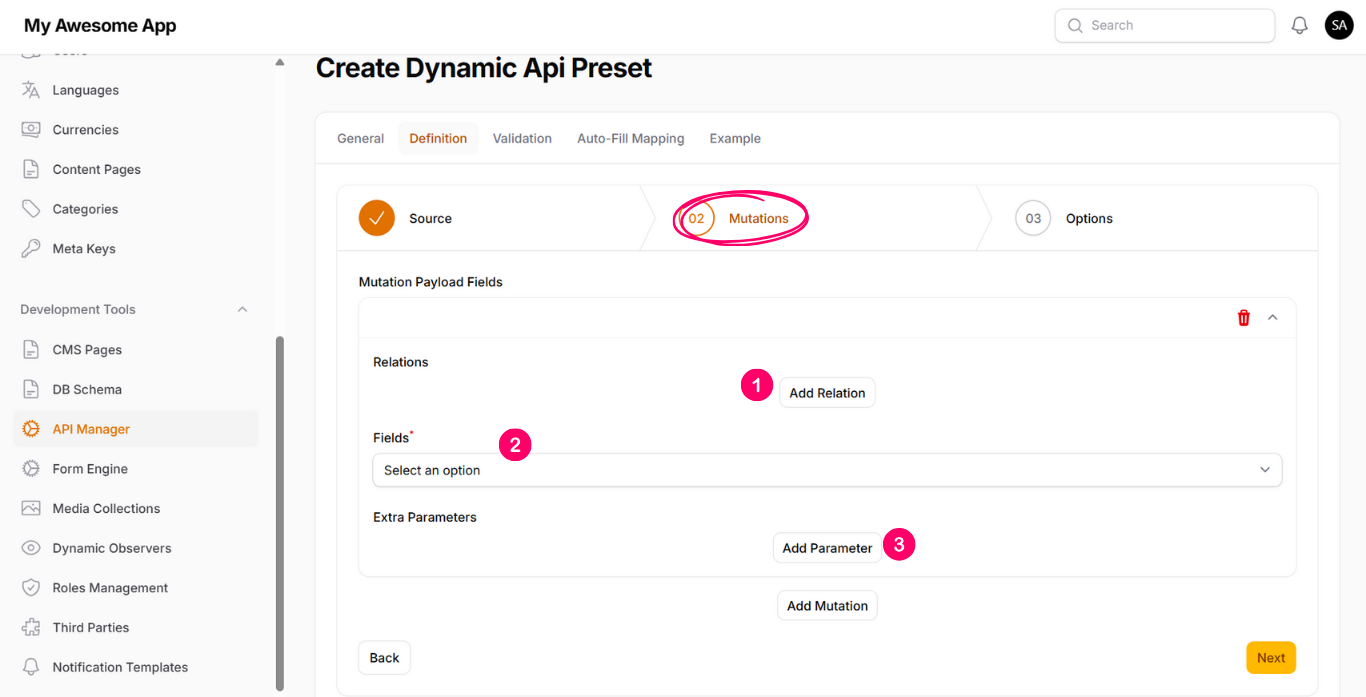
Step 2: Mutations
1. Relations
Used when creating or updating records for a related model.
2. Fields
Select which fields should be passed to the API and saved in the record.
3. Extra Parameters
Used to define additional parameters that are not passed from the request body.
These values can be static or dynamic.
Example: forcing is_active = true.
Step 3: Options (Mutation)
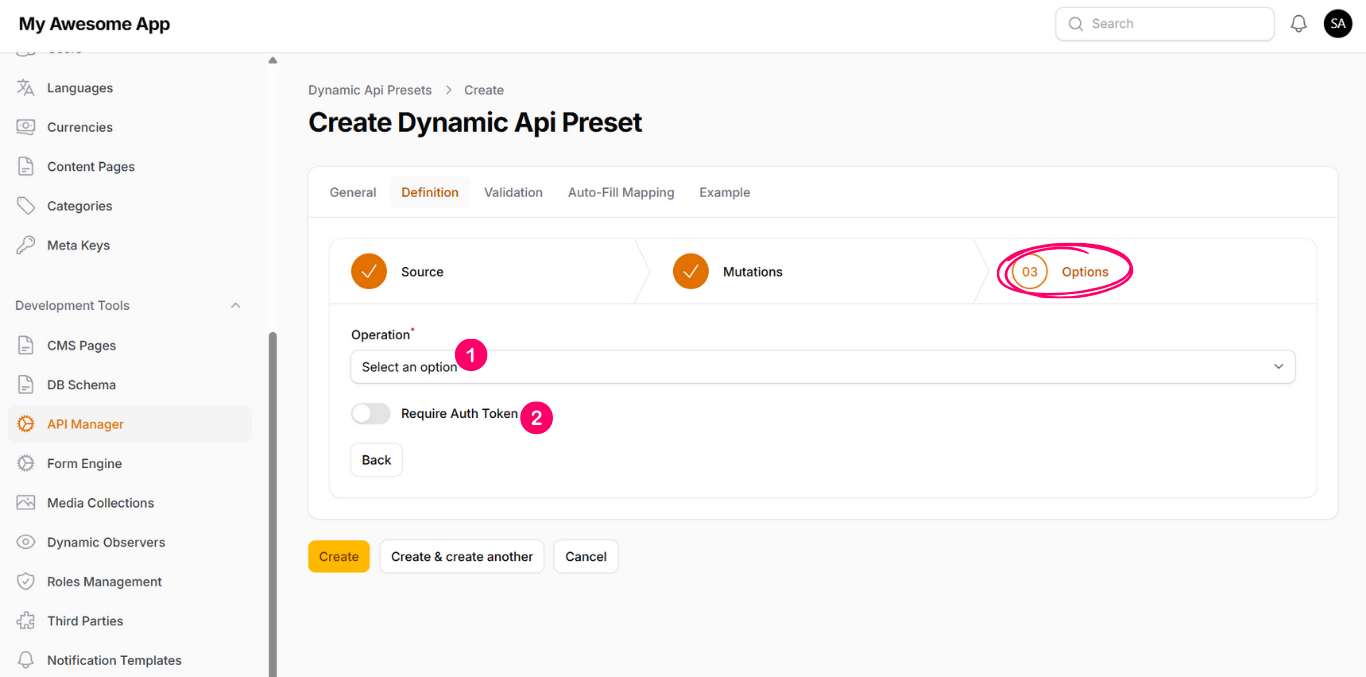
Operation
Create / Update / Delete
Identifier Key
Appears when Update or Delete is selected.
Used to identify the record, such as:
System ID (spfy_id), slug, id
Require Auth Token
If enabled, the API request will require an access token.
From this tab, you can define validation rules for API parameters.
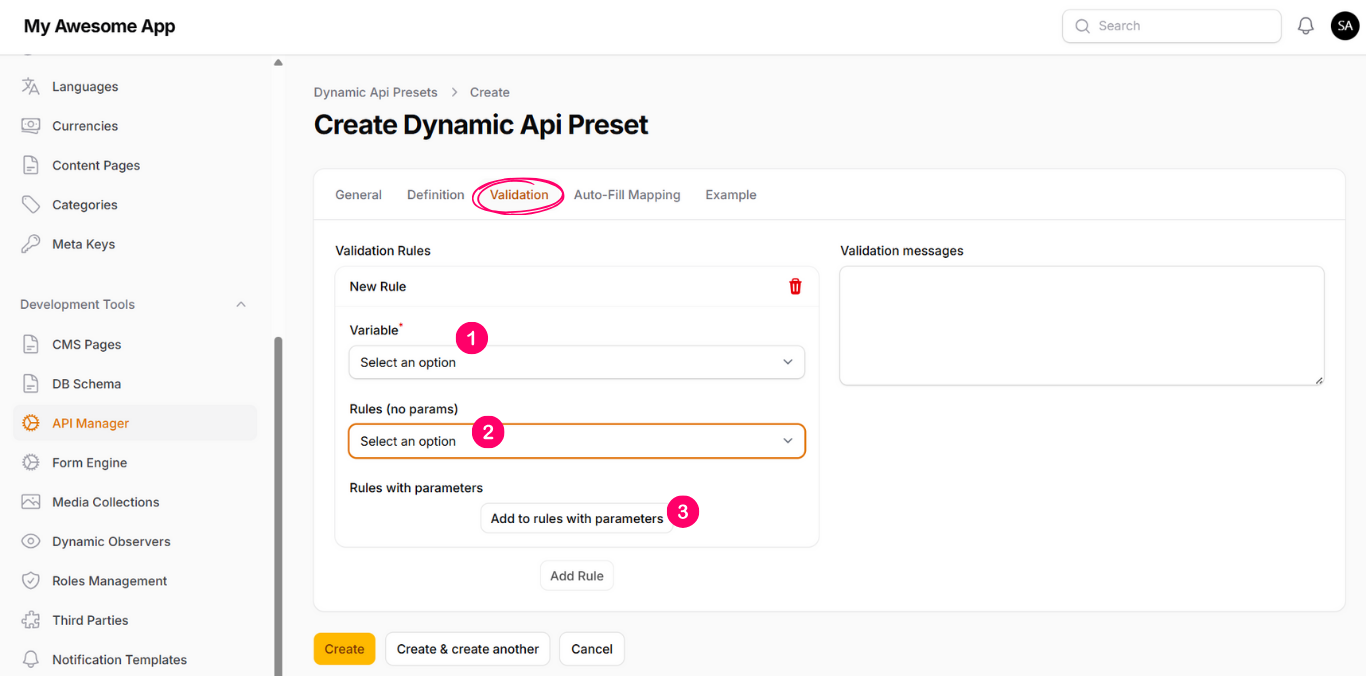
1. Variable
Select from available dynamic variables.
2. Rules (No Parameters)
Example: required, nullable
3. Rules with Parameters
Example: min, max, between
Note: Only dynamic values will be available for selection.
From this tab, you can define fields that will be filled automatically by the system instead of being passed in the request body.
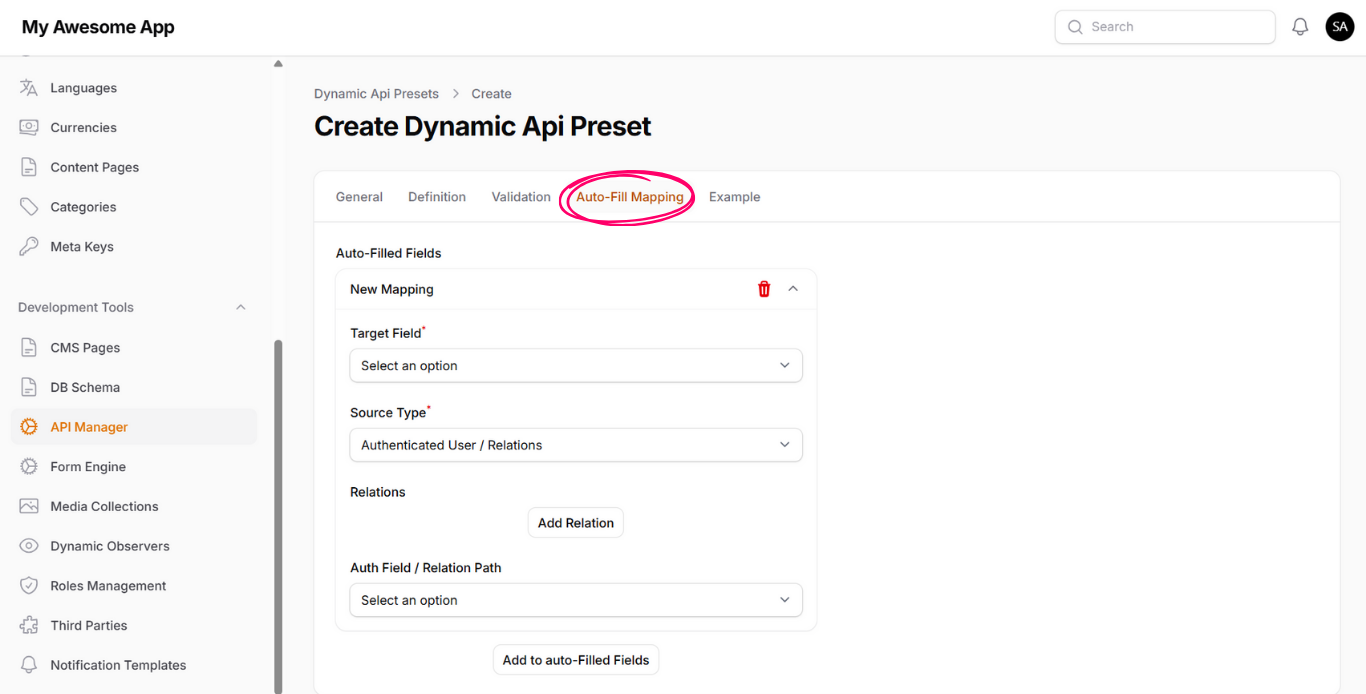
Examples include:
- user_id from the authenticated user
- Current timestamp
- Current locale
- Requester IP address
This is useful when creating APIs that depend on system or user context.
Note: Only dynamic values will be available for selection.