
Dynamic Observers
If we click on the page "Dynamic Observers" under Development Tools, you will be able to view and manage all defined observers.
At the top-right of the page, you can see "New Dynamic Observer". When you click on it, you will see the observer creation form with the following tabs and inputs:
Tab #1: General
This tab is used for the general settings of the observer, and it includes the following inputs:
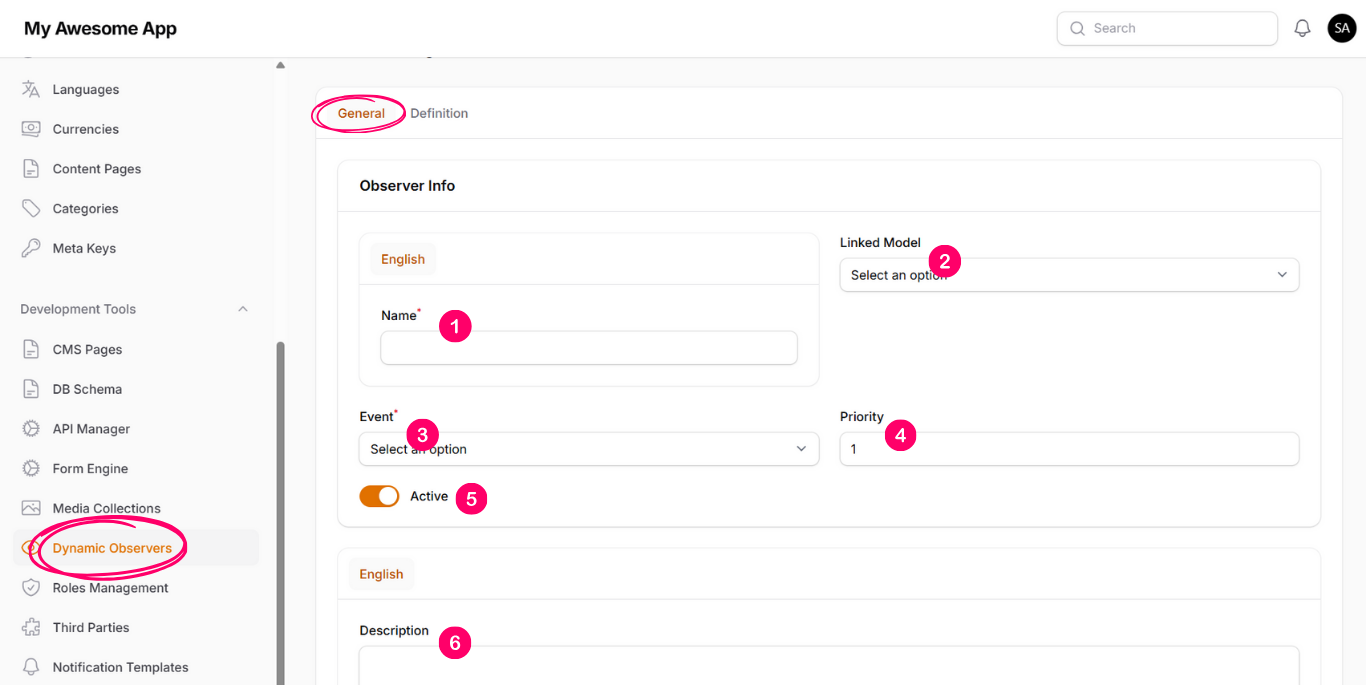
1. Name
(The name of the observer)
2. Linked Model
(Select the model that you want this observer to interact with)
3. Event
(Here you can select on which event you want the observer to be performed)
4. Priority
(Used to order the observers. If you have multiple observers for the same model and the same
event, you can define the order in which the system should execute them)
5. Active
(If enabled, the listener will detect and execute the observer)
6. Description
(This is useful to describe the observer for you and your teammates)
Tab #2: Definition
This tab is used to define the conditions that the observer will evaluate (if any exist) and the actions that the observer should perform.
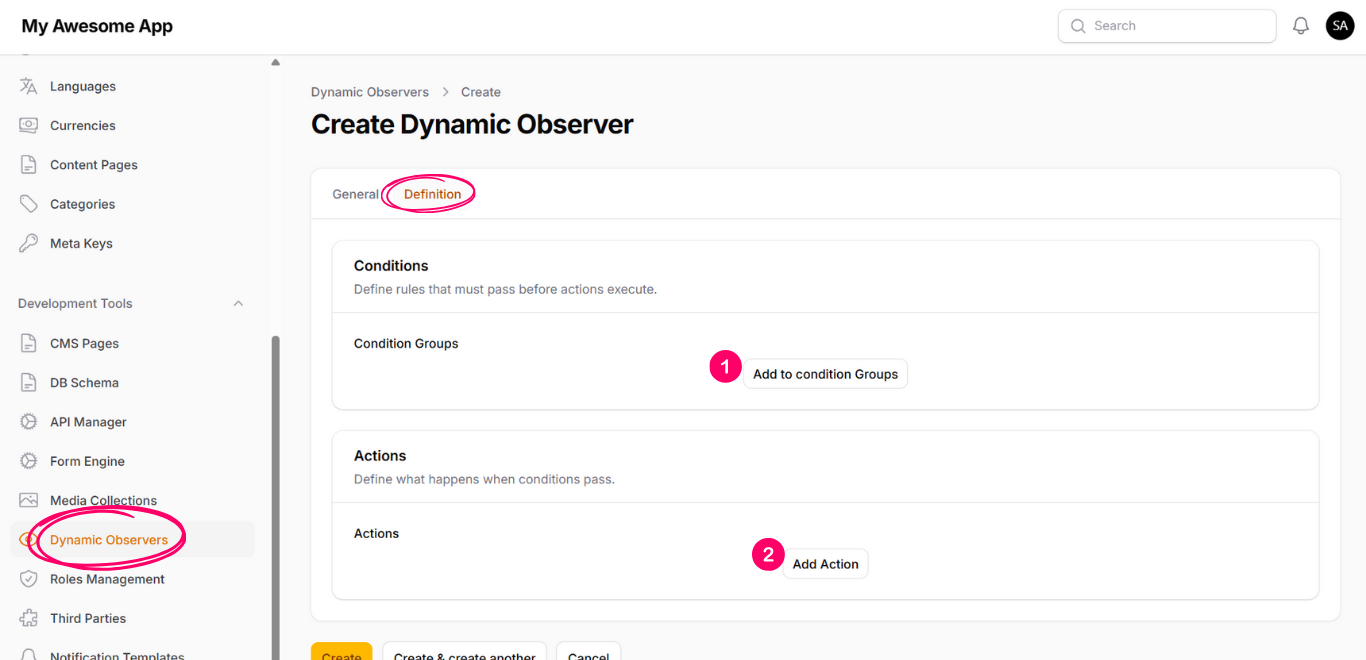
(A) Conditions (optional)
Here you can define multiple Condition Groups or multiple Conditions inside the same group. Inside each group, you will find the following options:
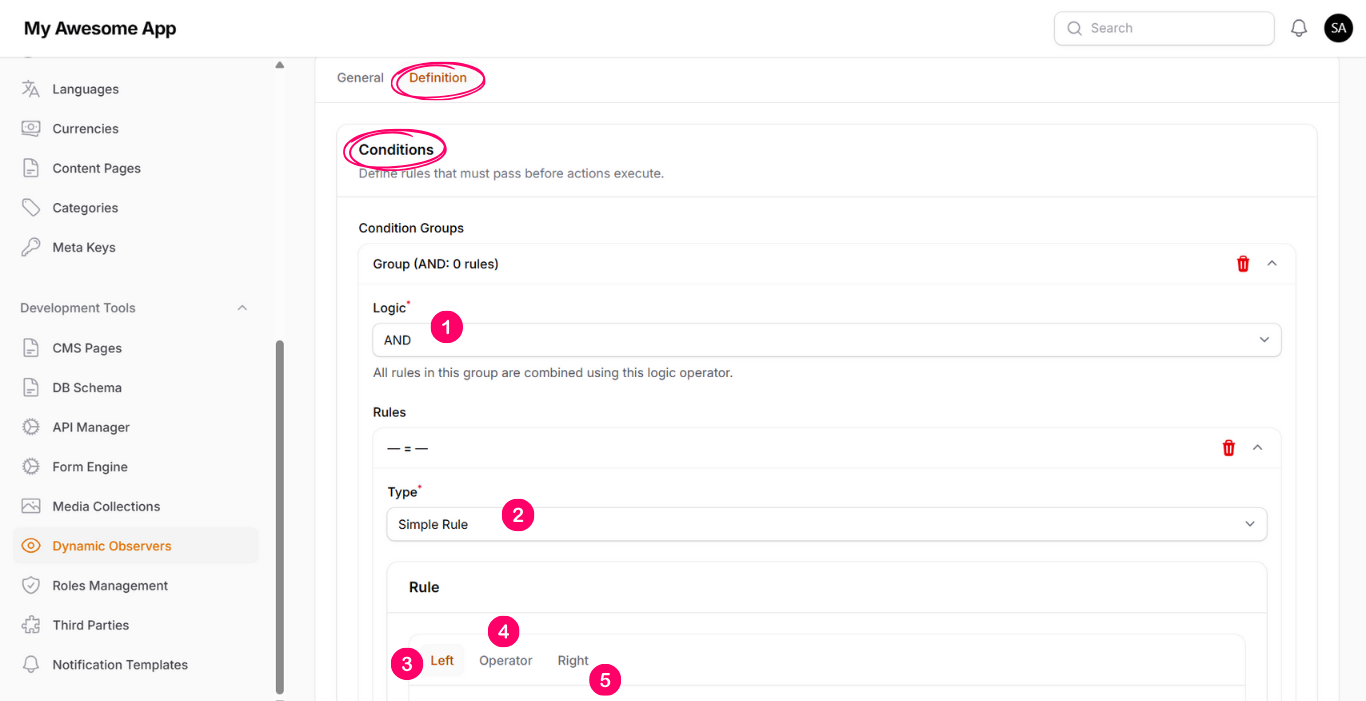
1 Logic
(And / Or – this defines the logical operation between conditions)
2 Type
Simple condition
This allows you to define a basic condition.
Example:
(Model "Item" → field "qty" operator "=" value "0")
Nested group
This allows you to define more complex conditions.
Example:
((Model "Item" → field "price" operator ">" value "0") AND
(Model "Item" → field "price" operator "<" value "10"))
3 If we select the type as "Simple condition", we will see three sections in the rule:
3.1 Left
From here, we define the left side of the condition. It contains the following options:
3.1.1 Base Model
From this dropdown, we can select the source from which the system will retrieve the left-side value of the condition:
Request Data (Request Payload)
(This is useful if we need to check values coming from the request body, for example:
"price" or "option.price")
Linked Model (Observer Model)
(Used if we want to use one of the fields of the model selected in the General tab.
You can also select fields from the model’s relations)
Auth User
(Used if you want to use one of the authenticated user’s fields or one of the user’s
relation fields)
3.2 Operator
From here, we define the operator between the left and right sides of the condition.
3.3 Right
From here, we define the right side of the condition. It contains the following options:
3.3.1 Value Type
This specifies how the value of the right side of the condition will be obtained. The available options are:
3.3.2 Static Value
(You simply enter a fixed value to be used on the right side of the condition)
3.3.3 System Token
(You can select one of the system tokens, such as the current date, current time, etc.)
3.3.4 Dynamic Expression
This type allows you to define the right side dynamically, and it includes the following inputs:
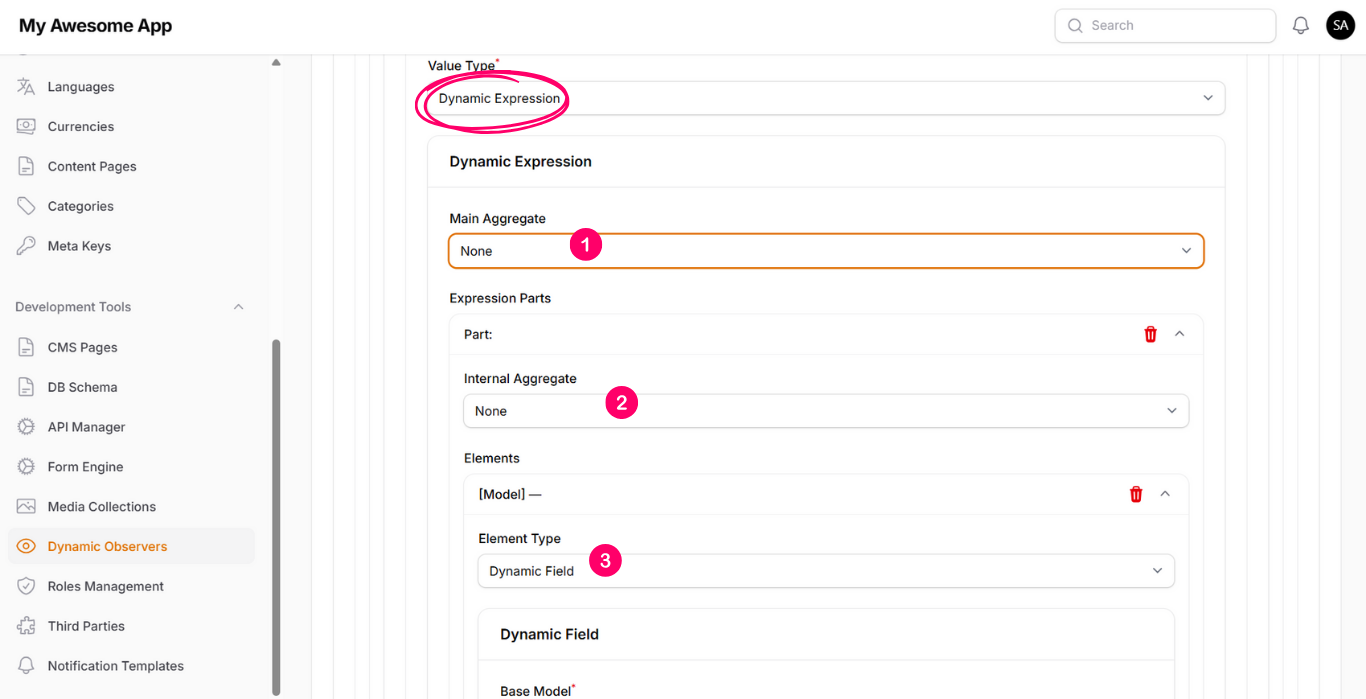
3.4.1 Main Aggregate
(Select the aggregator that will be applied between all parts of the "Expression Parts")
3.4.2 Internal Aggregate
(Select the aggregator that will be applied between all elements inside each expression part)
3.4.3 Element Type
(Defines whether the element is static or dynamic)
3.4.4 Static Value
(You only need to enter a value)
3.4.5 Dynamic Field
When selected, the following inputs will appear:
3.4.5.1 Base Model
(Either Auth User or Observer Model)
3.4.5.2 Relations Chain (optional)
(Useful when retrieving a value from a related model)
3.4.5.3 Field
(Select the field whose value will be used)
3.4.5.4 Aggregate (optional)
(Useful if the relation has multiple records and you want to apply sum, count, avg, etc.)
(B) Actions
Here you can define multiple actions that will be executed if the conditions are met, or directly if no conditions are defined. The available action types are:
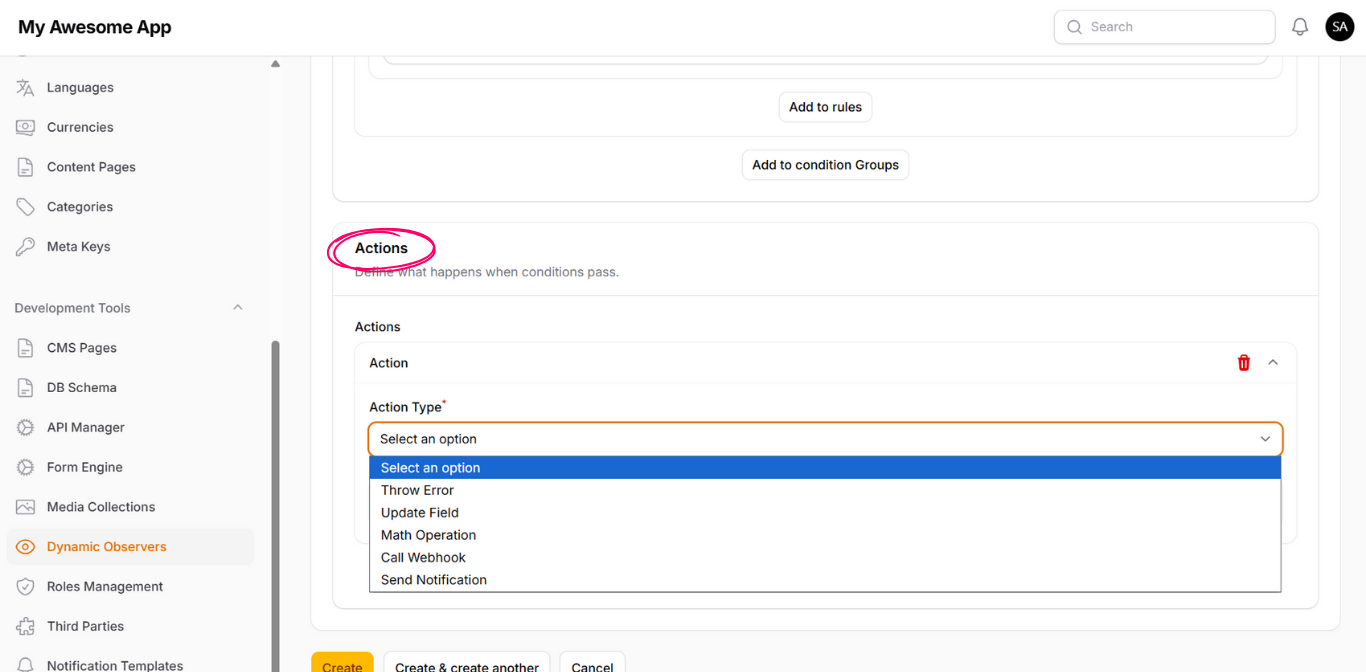
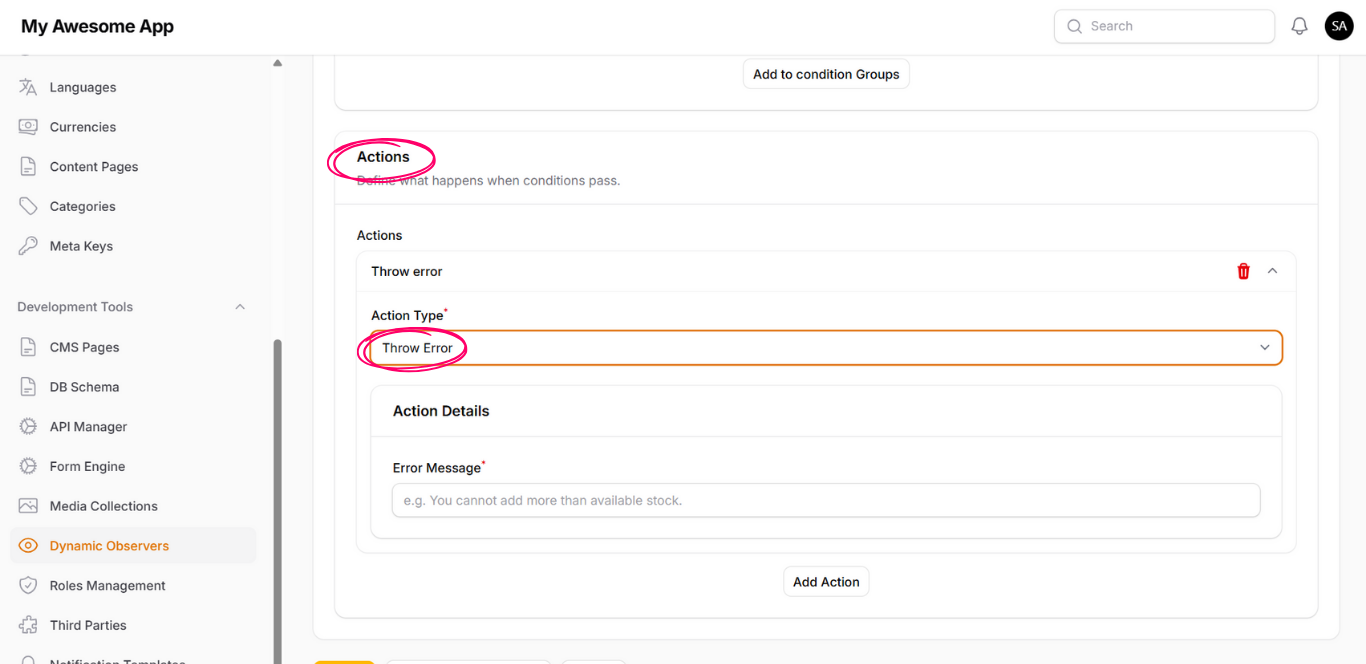
1. Throw Error
This action allows you to throw an error message when conditions are met.
Example: showing an error message if an Item has no available quantity to be added to the cart.
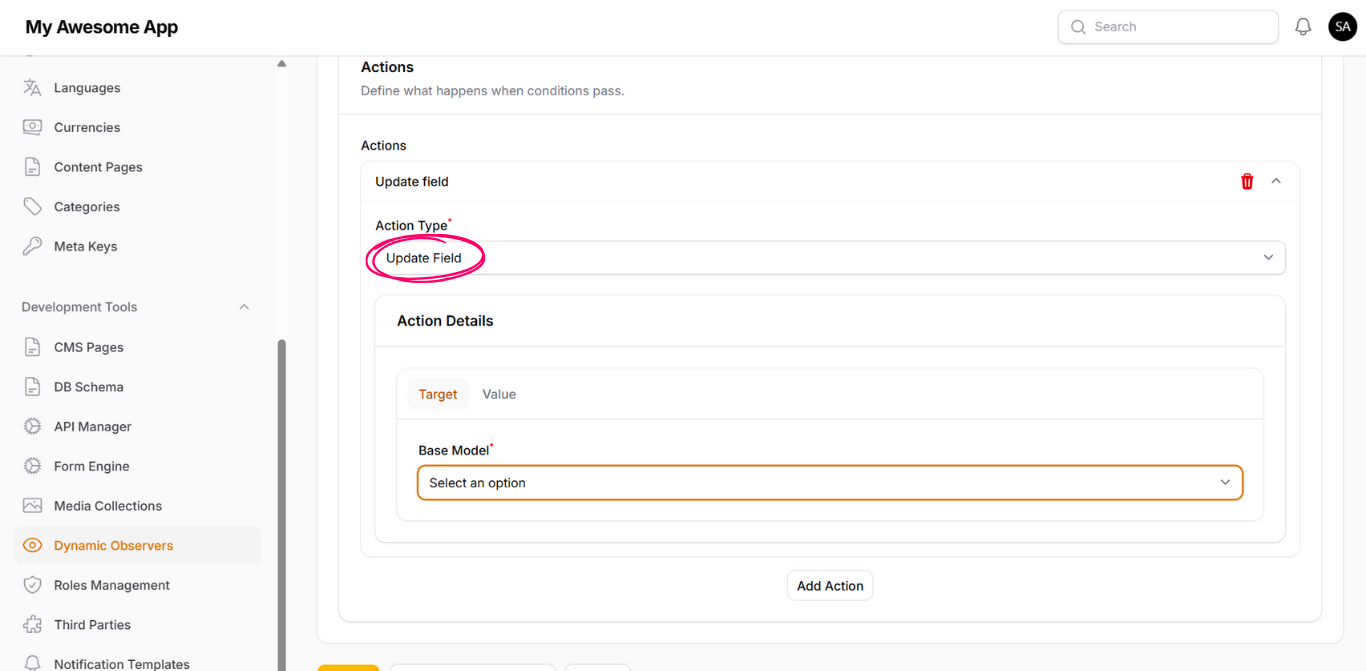
2. Update Field
2.1 Target tab
Here you define the target field that will be updated by selecting the Base Model and the required field.
2.2 Value tab
2.2.1 Request Payload
(The value is taken from the request payload)
2.2.2 Linked Model (Observer Model)
(The value is taken from the observer model or one of its relations)
2.2.3 Auth User
(The value is taken from the authenticated user or one of their relations)
2.2.4 Static Value
(A fixed value is assigned, for example: marking an Item as inactive when its quantity reaches zero)
3. Math Operation
This action is useful when you want to increase or decrease a numeric field by a value.
Example: decreasing the quantity of an Item when a user completes a checkout and purchases the Item.
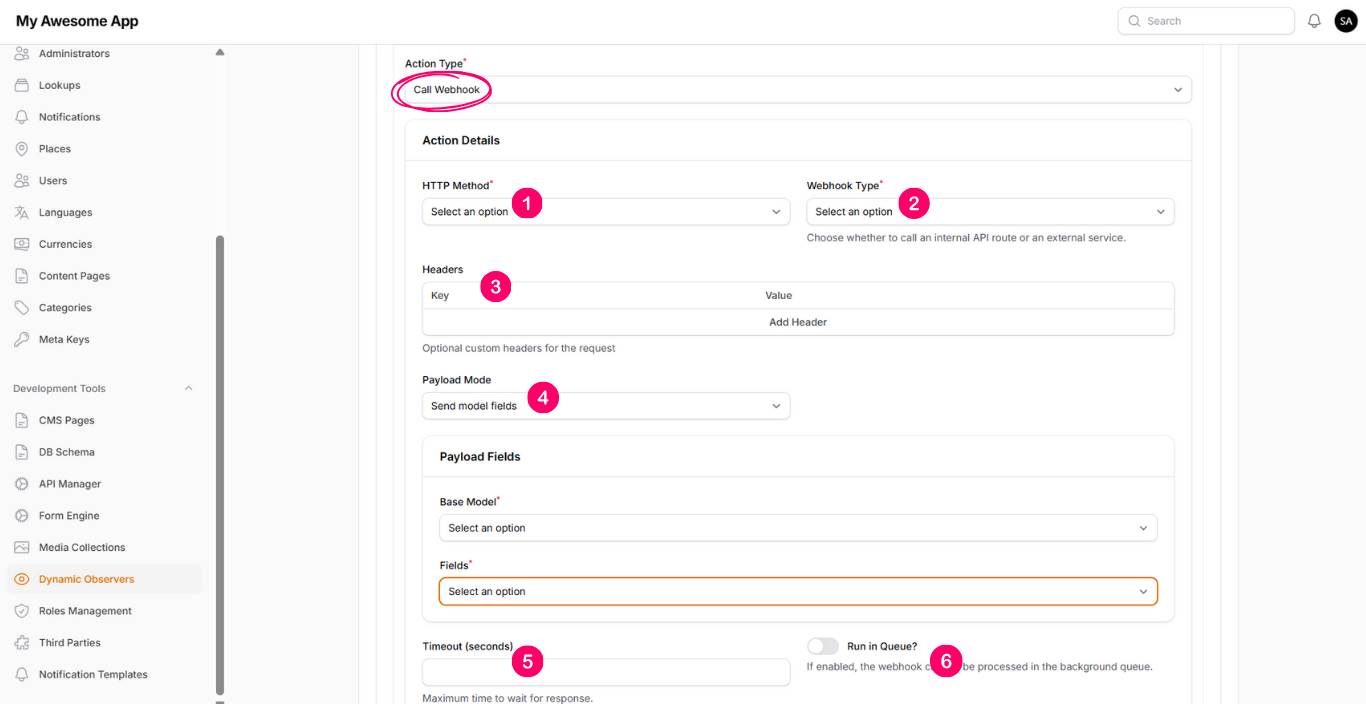
4. Call Webhook
4.1 HTTP Method
(Select the HTTP method: POST, GET, UPDATE, or DELETE)
4.2 Webhook Type
(Select whether the webhook is Internal or External)
Based on the selection, you will see either:
External Webhook URL
Internal Endpoint (e.g. /api/v1/notify-user)
4.3 Headers
(This section allows you to pass any required header parameters)
4.4 Payload Mode
(Specify whether to send model fields or static JSON)
Based on the selection, you can either enter JSON manually or select fields from the model.
4.5 Timeout (seconds)
(The maximum time the system will wait for a response)
4.6 Run in Queue?
(If enabled, the webhook call will be processed in the background queue,
and the system will not wait for the response)
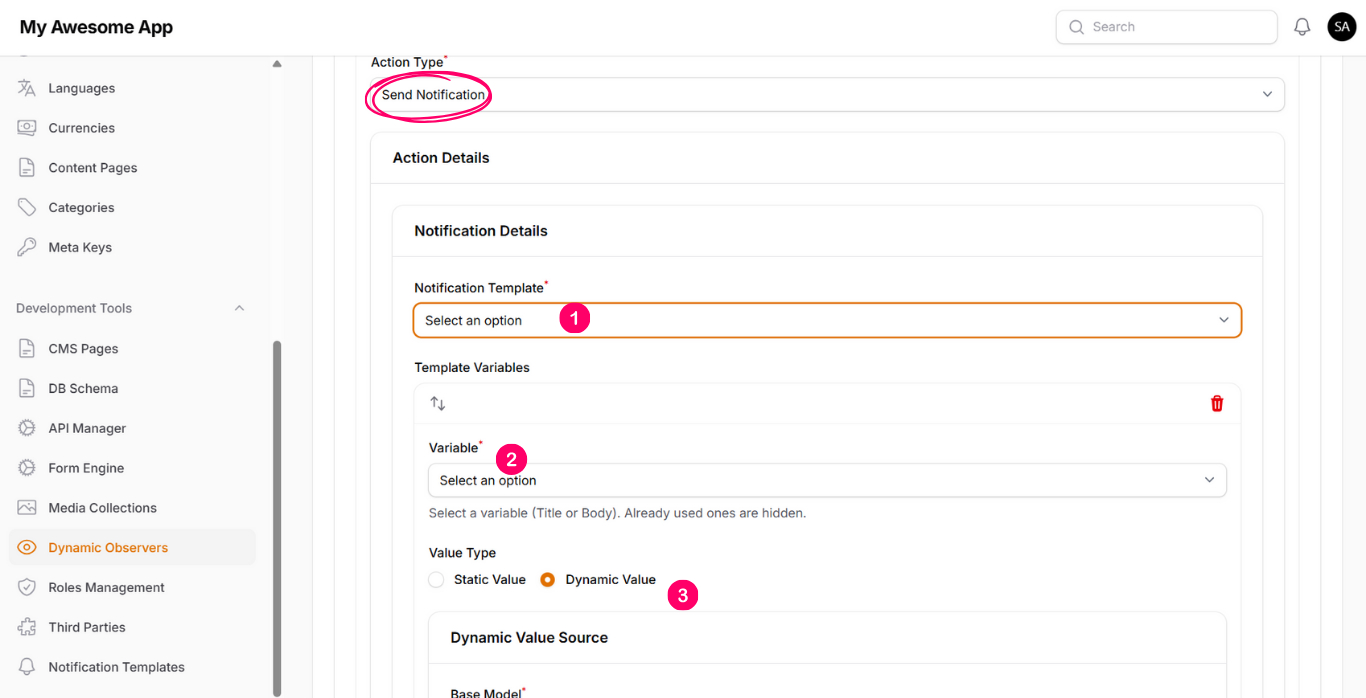
5. Send Notification
5.1 Section #1: Notification Details
Here you can select the notification template to be used and replace its variables
with static or dynamic values.
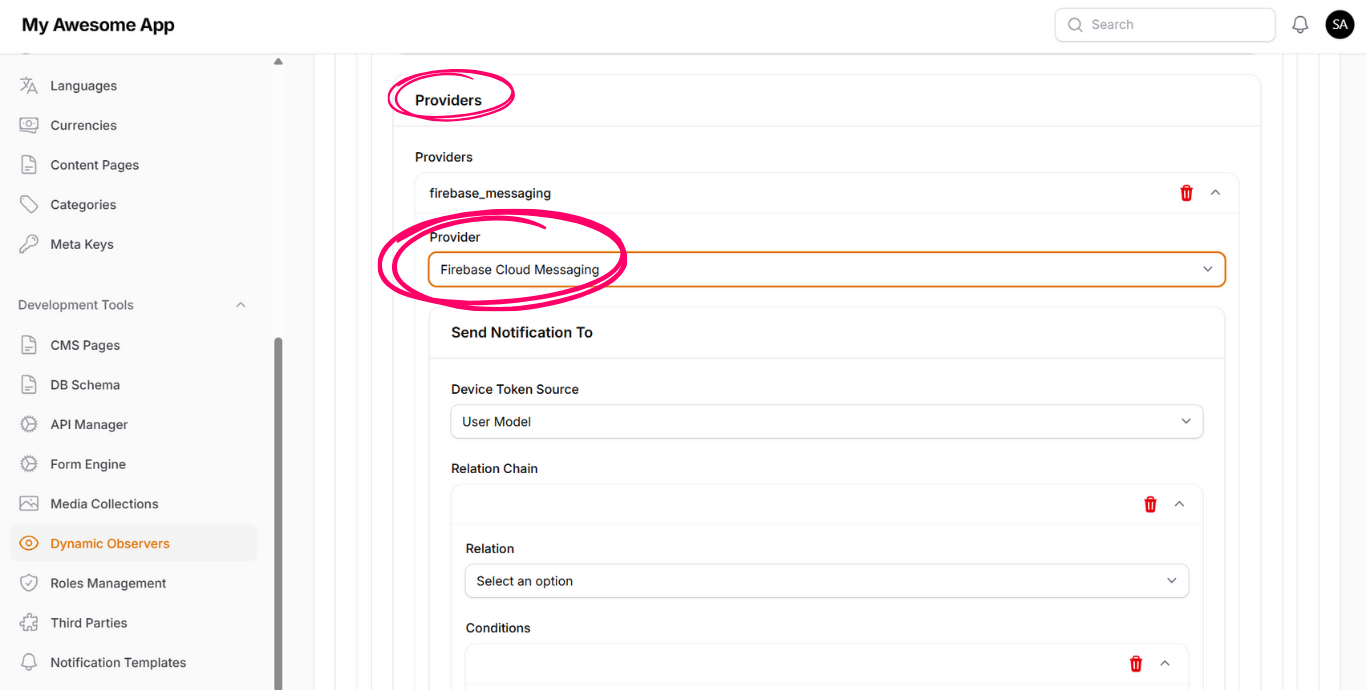
5.2 Section #2: Providers
Here you can select which third-party provider will be used to send the notification,
such as Firebase Cloud Messaging or CMS Notifications.
Additional inputs will appear based on the selected provider.