
CMS Pages allow you to build fully functional admin pages for managing your application data without writing any backend or frontend code.
From this section, you can define how data is listed, created, edited, viewed, related to other pages, and secured using permissions.
CMS Pages are directly connected to database tables and are generated dynamically based on your configuration.
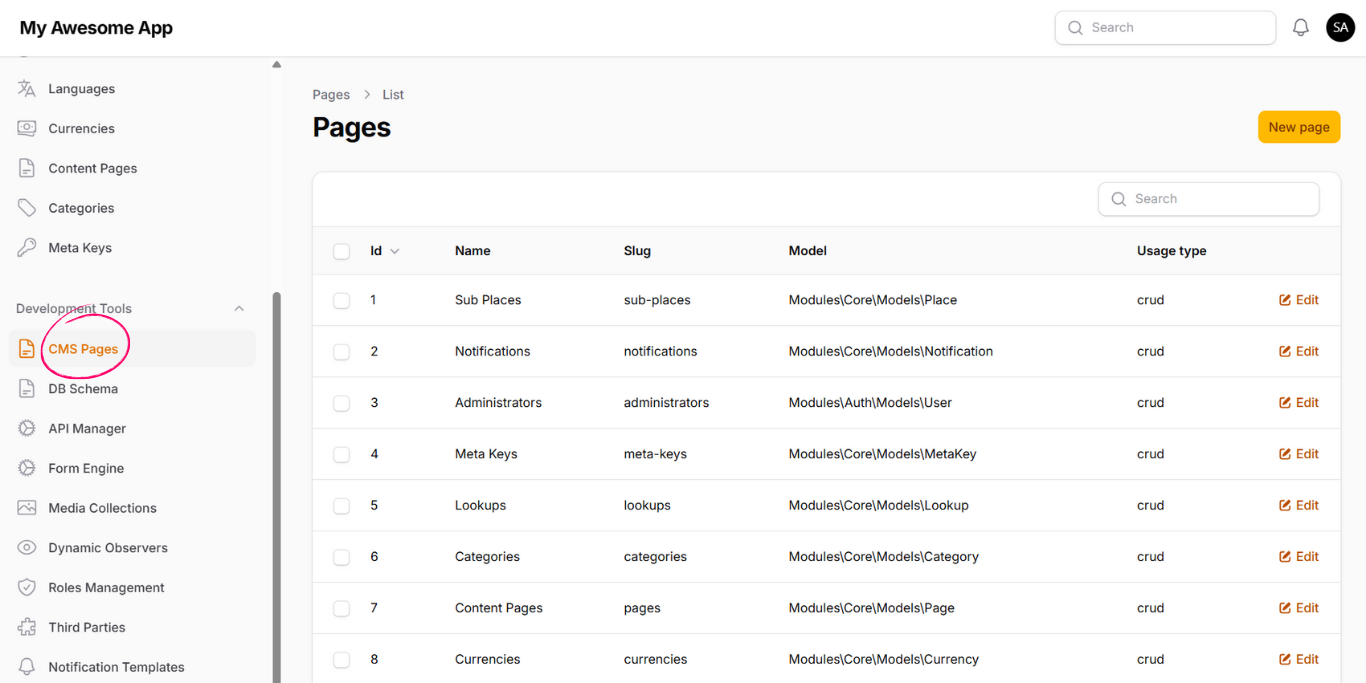
To create a new CMS Page, click on Create Page from the top-right corner of the CMS Pages section.
-
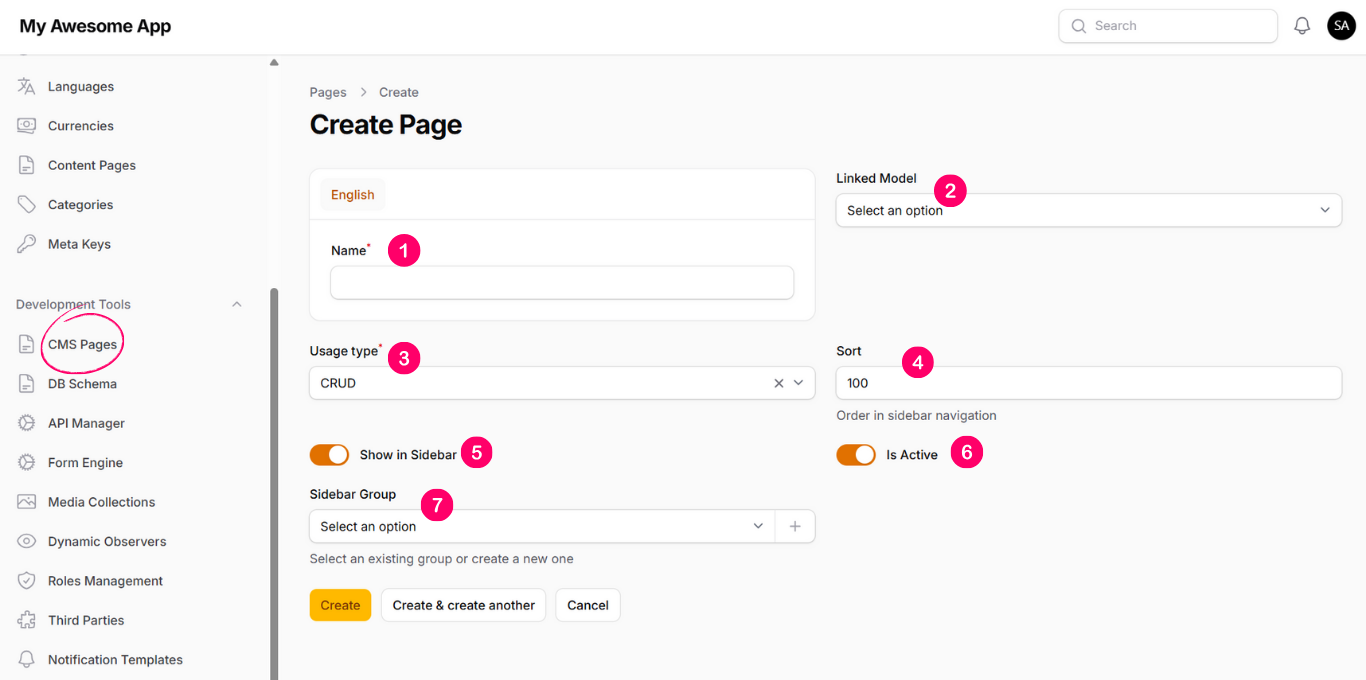
Name
Display name of the page. This value is translatable using active languages. -
Linked Model
The database model that this page will manage. -
Page Type
Defines the behavior of the page. Common type is CRUD, which includes listing, creating, editing, and deleting records. -
Sort
Controls the order of the page in the left-side navigation. -
Show in Sidebar
When enabled, the page appears in the left-side navigation. When disabled, it can be used as an inner (related) page. -
Is Active
Controls whether the page is accessible in the CMS. -
Sidebar Group
Allows grouping pages under a specific navigation group. Leave empty to keep the page at top level.
After creating the page, you can manage its fields from the Fields tab.
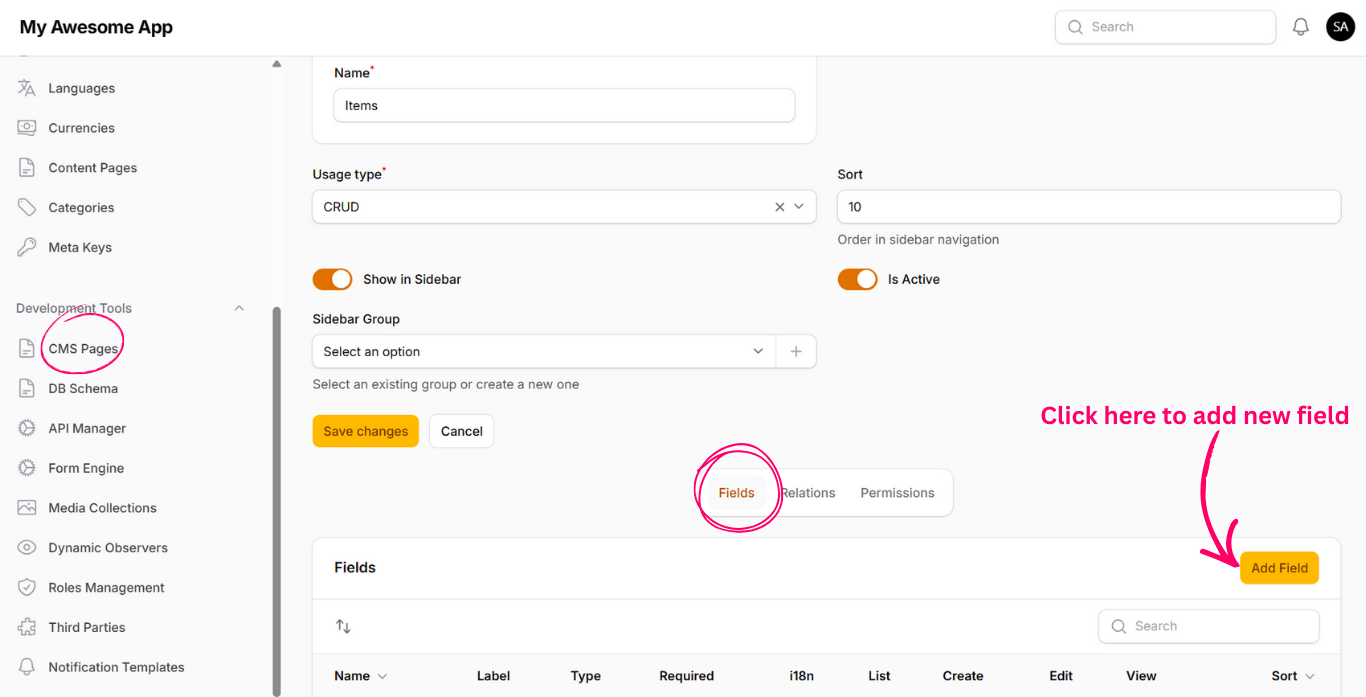
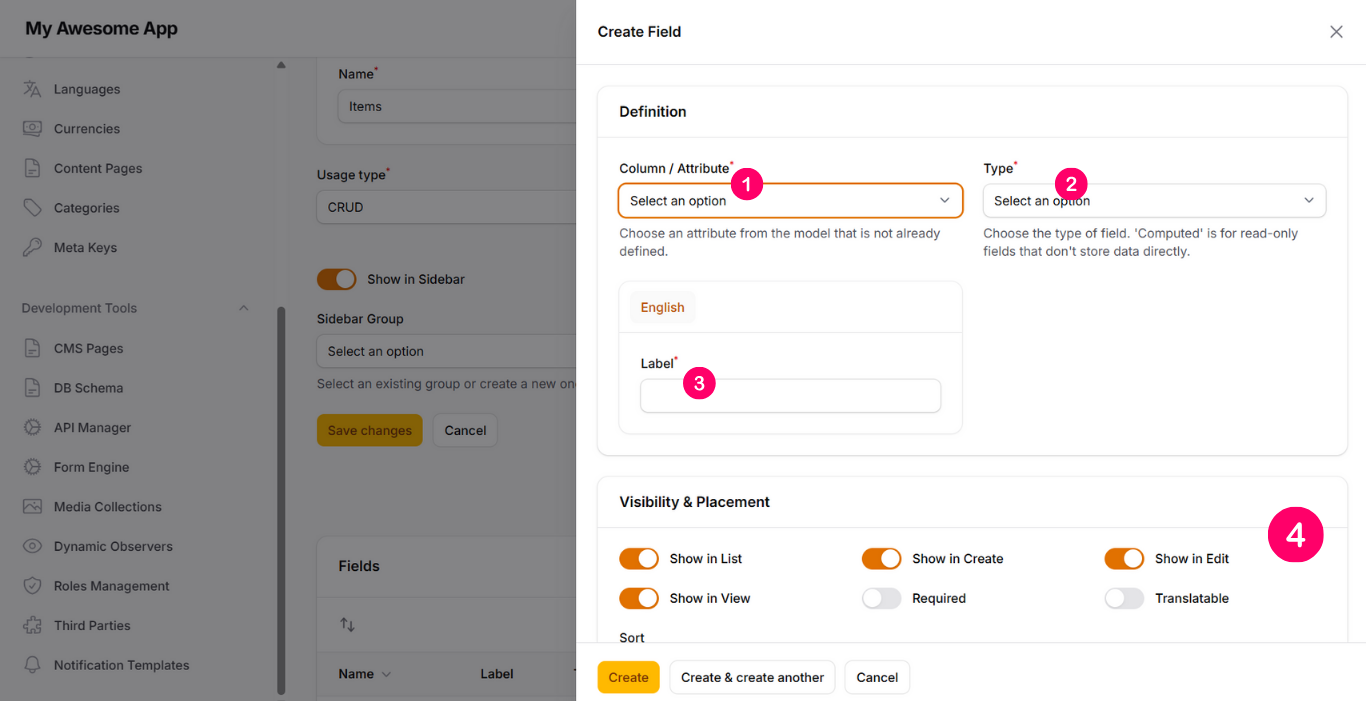
Click on Add Field to define how each database column is rendered and validated in the CMS.
-
1. Column / Attribute
Select the database column that this field represents. -
2. Type
Defines the UI type such as string, textarea, select, radio, etc. -
3. Label
Display label shown in the CMS forms and tables. -
4. Visibility & Placement
- Show in List
- Show in Create
- Show in Edit
- Show in View
- Required
- Translatable
- Sort
-
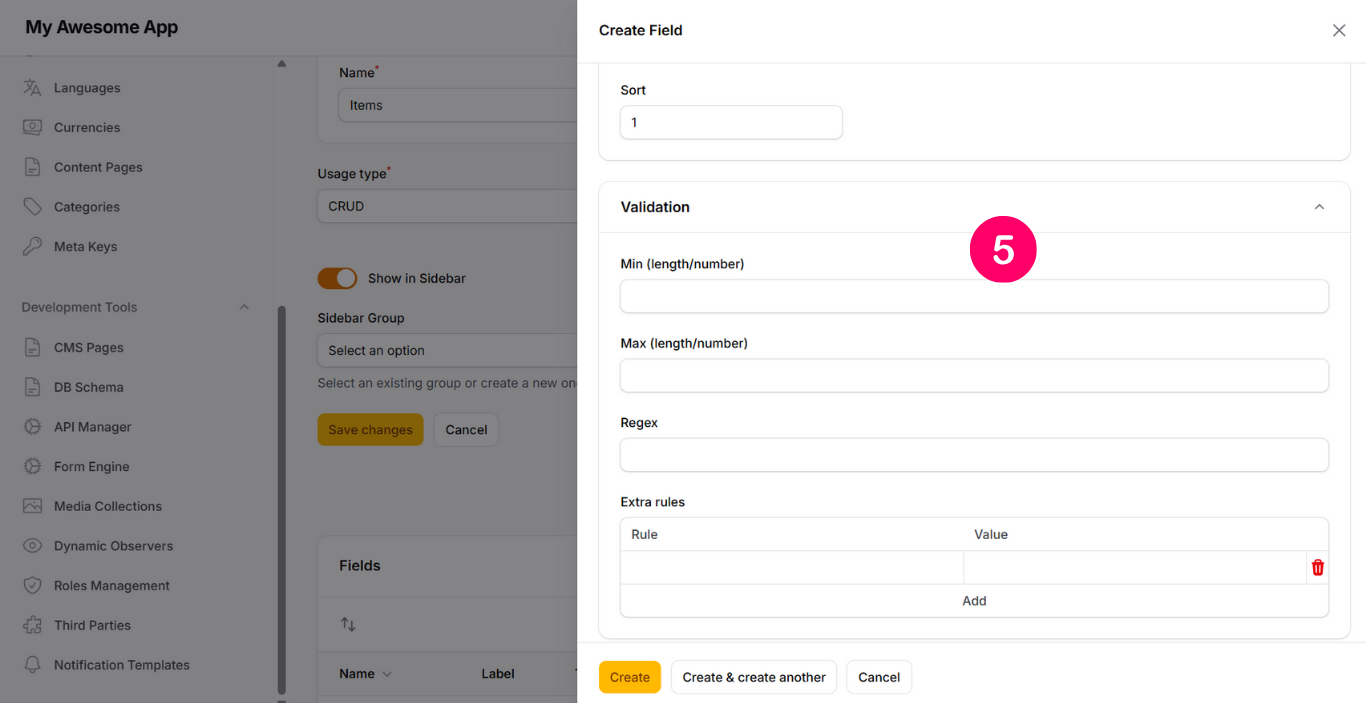 5. Validation
- Min (length or number)
- Max (length or number)
- Regex validation
-
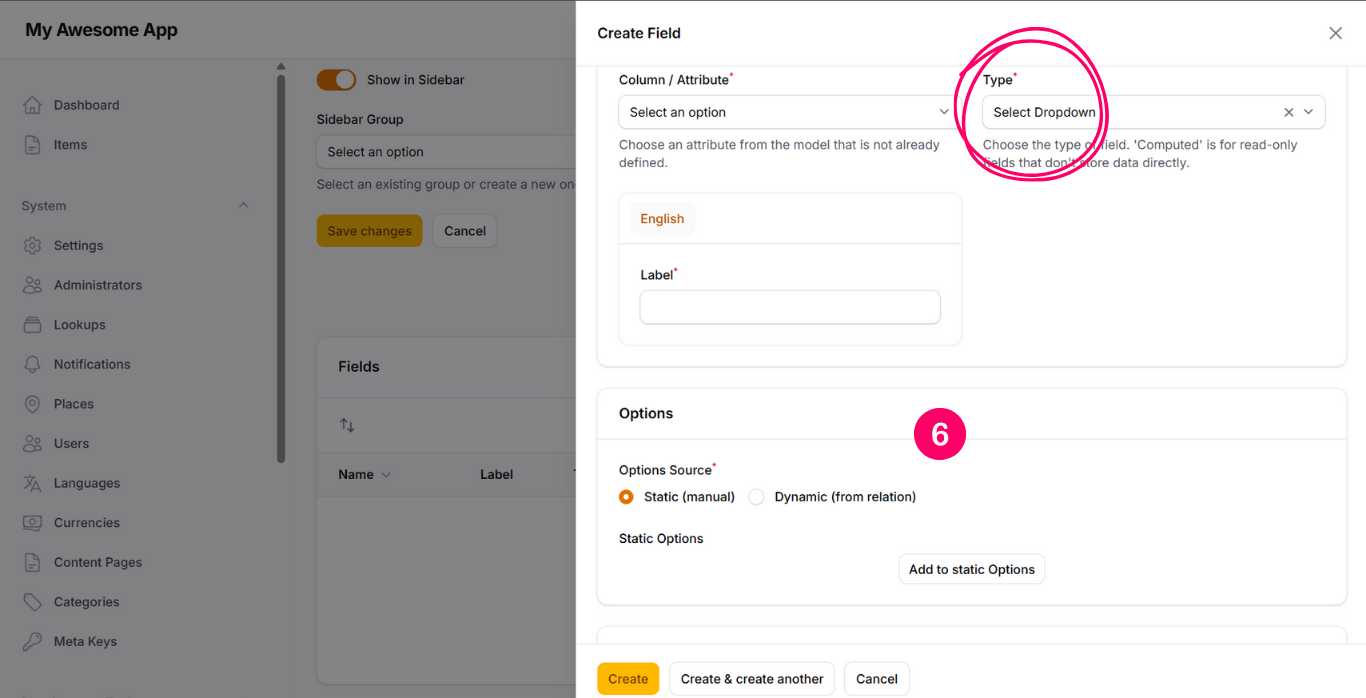 6. Options
Available for select, radio, checkbox, and autocomplete fields.
- Static (Manual) – define key and label manually
- Dynamic (From Relation) – load options from a related model
-
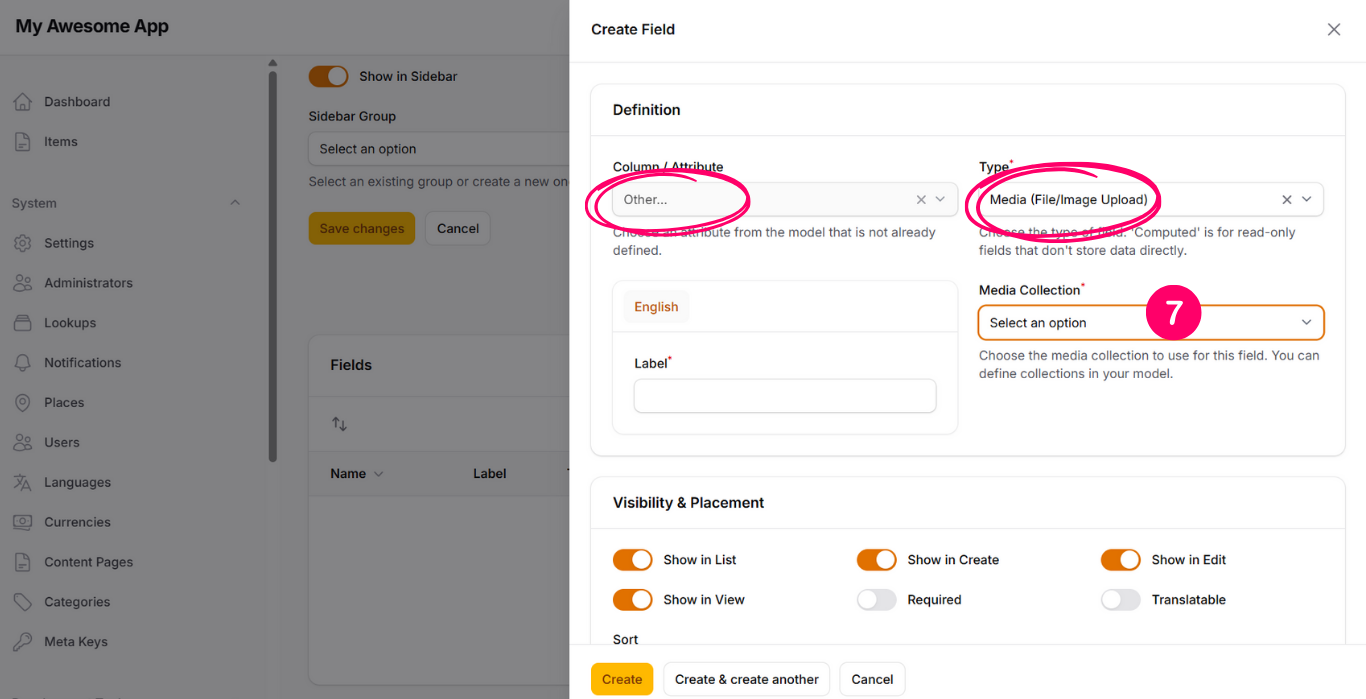 7. Media Collection
Available when field type is Media. Connects the field to a media collection defined in Developer Tools.
-
 8. Lookup Setting
Available when field type is Lookup. Renders the field as a dropdown using lookup values defined in the system.
-
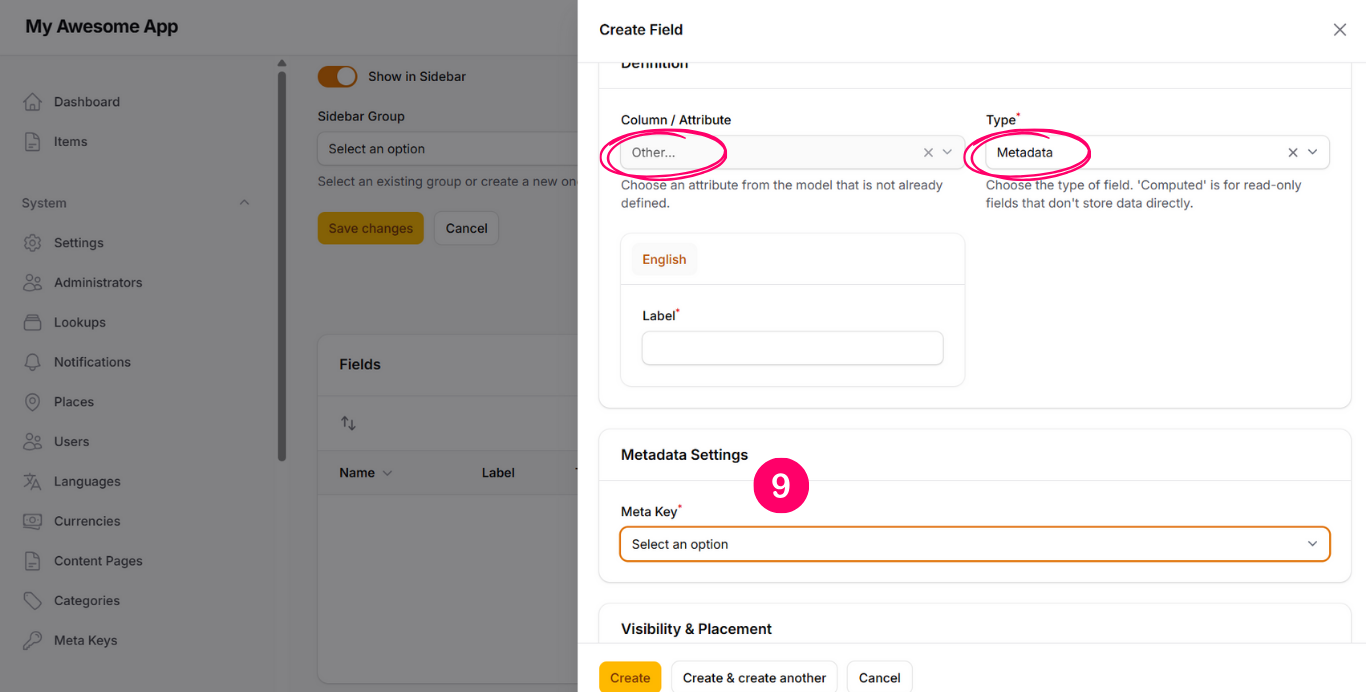 9. Metadata Settings
Available when field type is Metadata. Uses defined meta keys to render dynamic, flexible attributes.

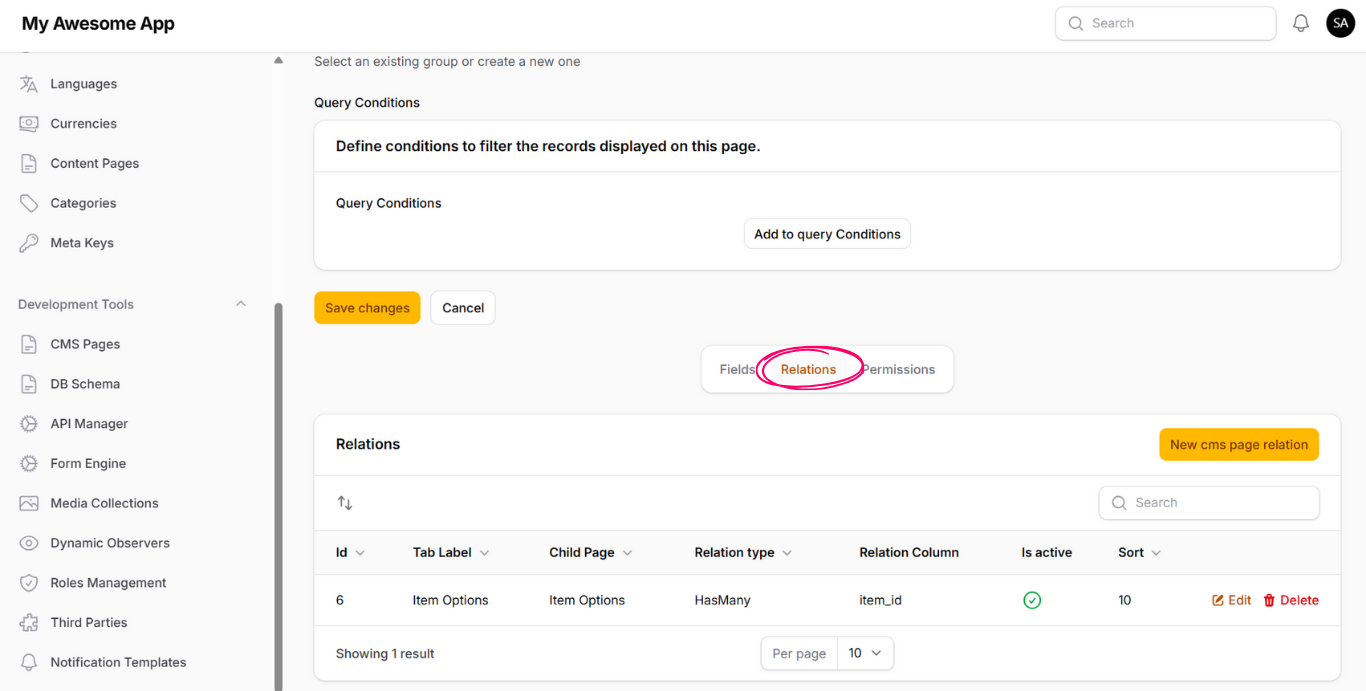
CMS Pages support inner pages through the Relations tab.

You can add new inner page by clicking on "New cms relation page" button

-
1. Child Page
The page that will be shown as an inner page. -
2. Label
Display name of the inner page tab. -
3. Sort
Order of the tab. -
4. Is Active
Controls visibility of the inner page. -
5. Extra Conditions
Filter data shown in the inner page based on conditions.
Then, you will see the inner page listed in the table under "Relations" tab.
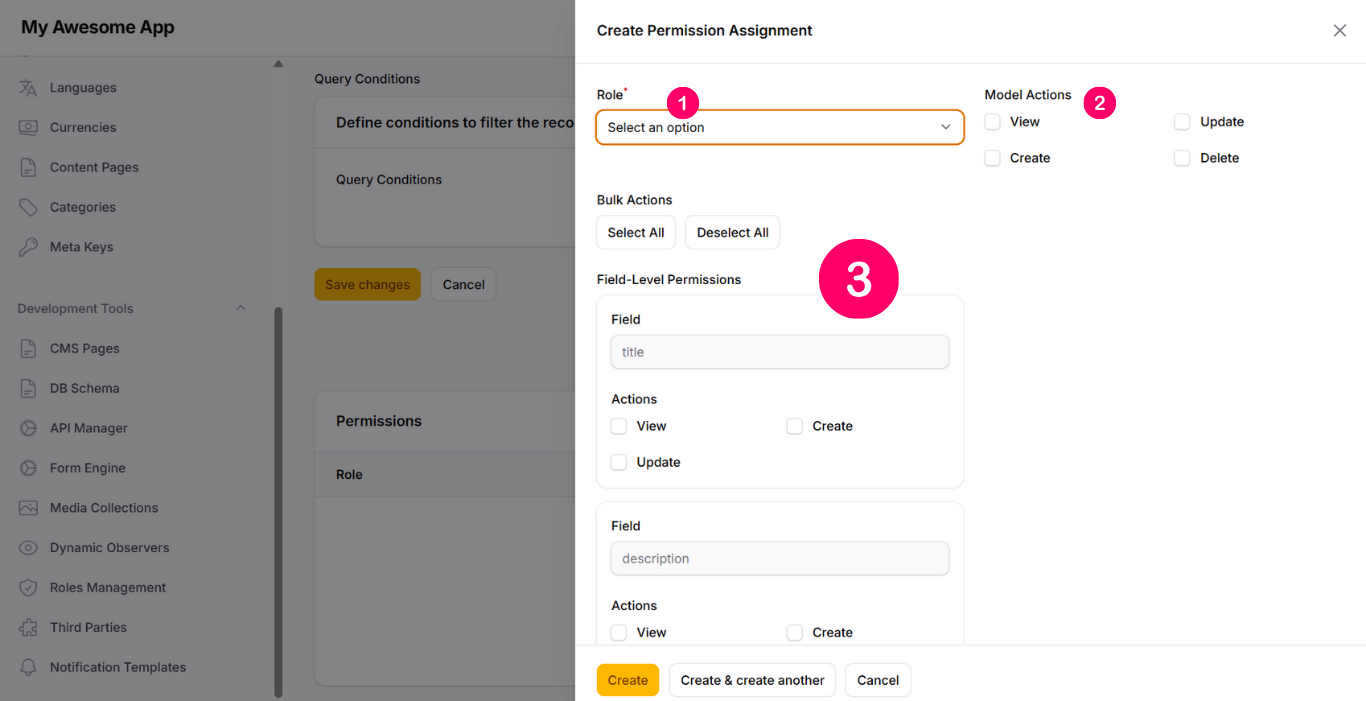
Permissions control which roles can access and manage this page.
You can assign new permission for this role by clicking on the "New permission assignment" button.
-
1. Role
Select the role to assign permissions to. -
2. Model Actions
Control access to view, create, update, and delete records. -
3. Field-Level Permissions
Control access to view, create, or update individual fields. Bulk actions are available to simplify configuration.
When you click on a page name from the left-side navigation, the system opens the list table view for that page. This view displays all records related to the selected page and provides multiple tools to manage the data efficiently.
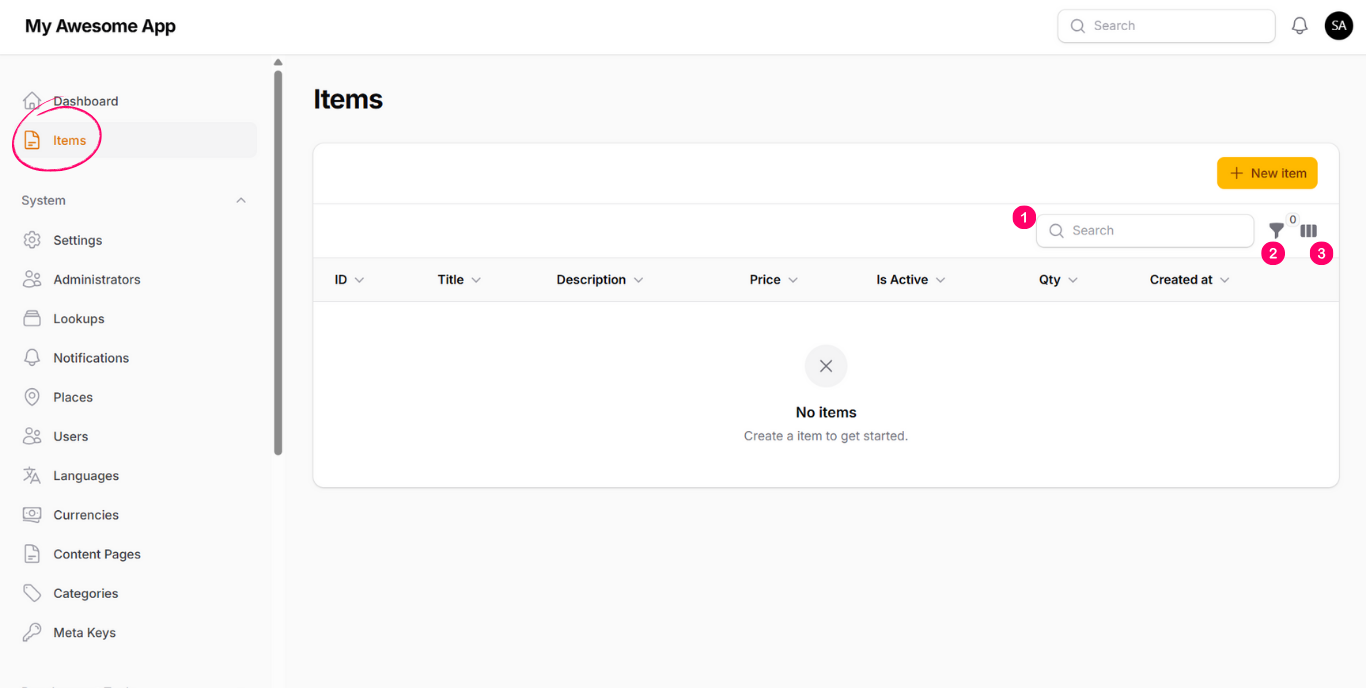
- Search bar
- Dynamic filters
- Show / hide table columns
- New record button
- Edit and delete actions
Search
The search option allows you to find records using a search keyword.
It helps you quickly locate specific data within the list table without manually browsing through all records.
Filter
The filter option is rendered automatically based on the fields defined for the page.
It allows you to filter records using these fields to narrow down the displayed data.
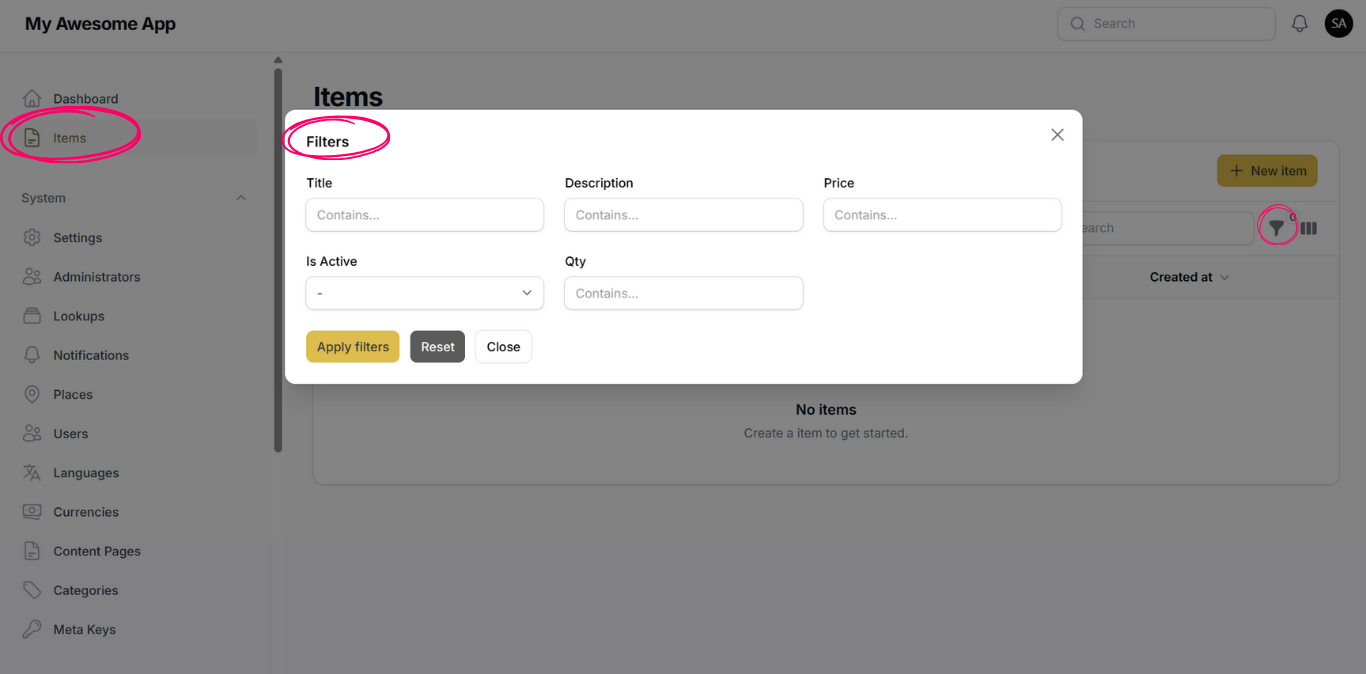
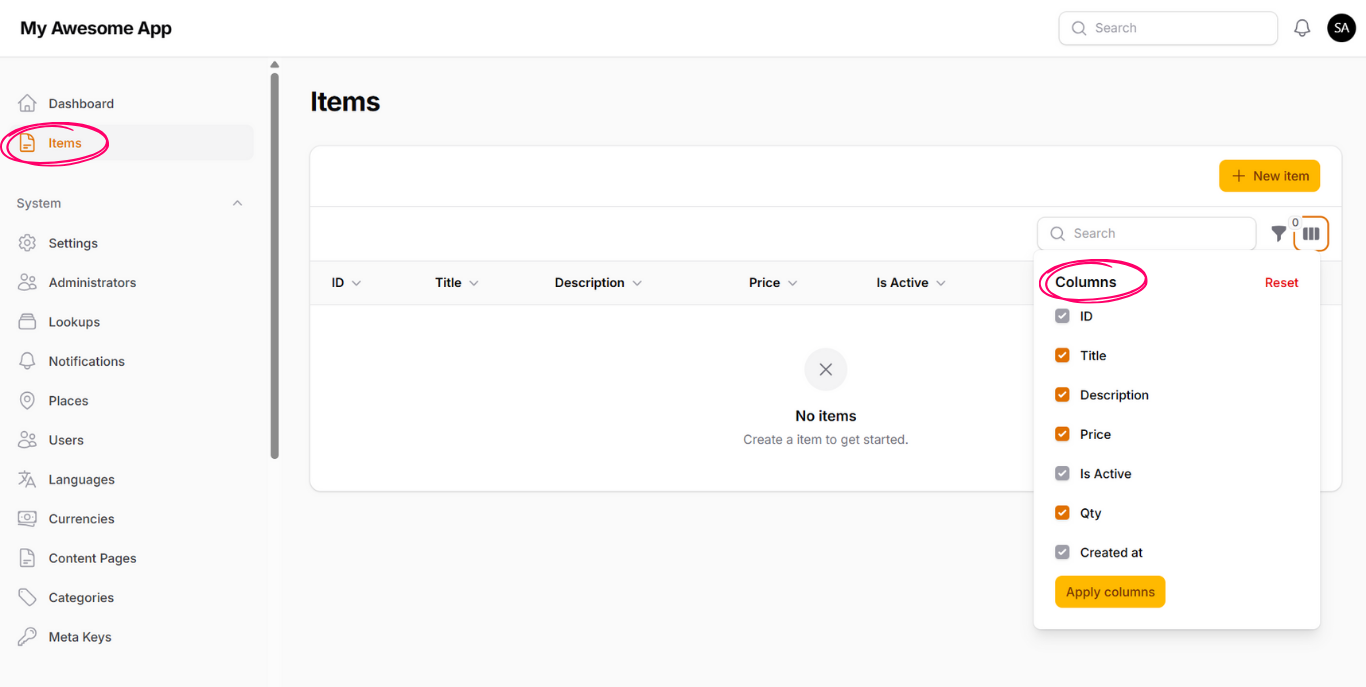
Table Columns Show / Hide
This option allows you to show or hide columns in the list table.
It is useful for controlling which fields are visible in the table based on your needs.
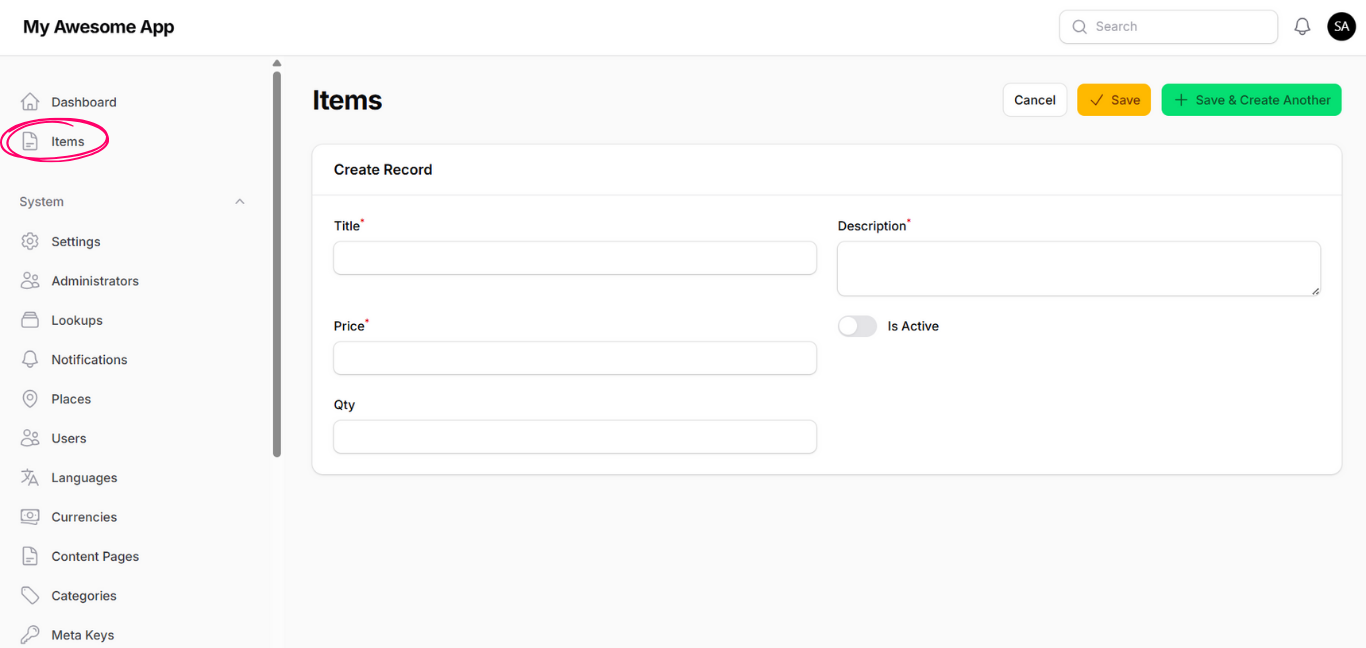
New Button
The New button allows you to create a new record for this page.
The create form is generated dynamically based on the fields defined for the page.
Edit Icon
The Edit icon allows you to edit an existing record.
When clicked, the edit form opens with the defined fields for the page, allowing you to update the record data.
Delete Icon
The Delete icon allows you to delete an existing record from the page,
based on the permissions and behavior defined for the model.
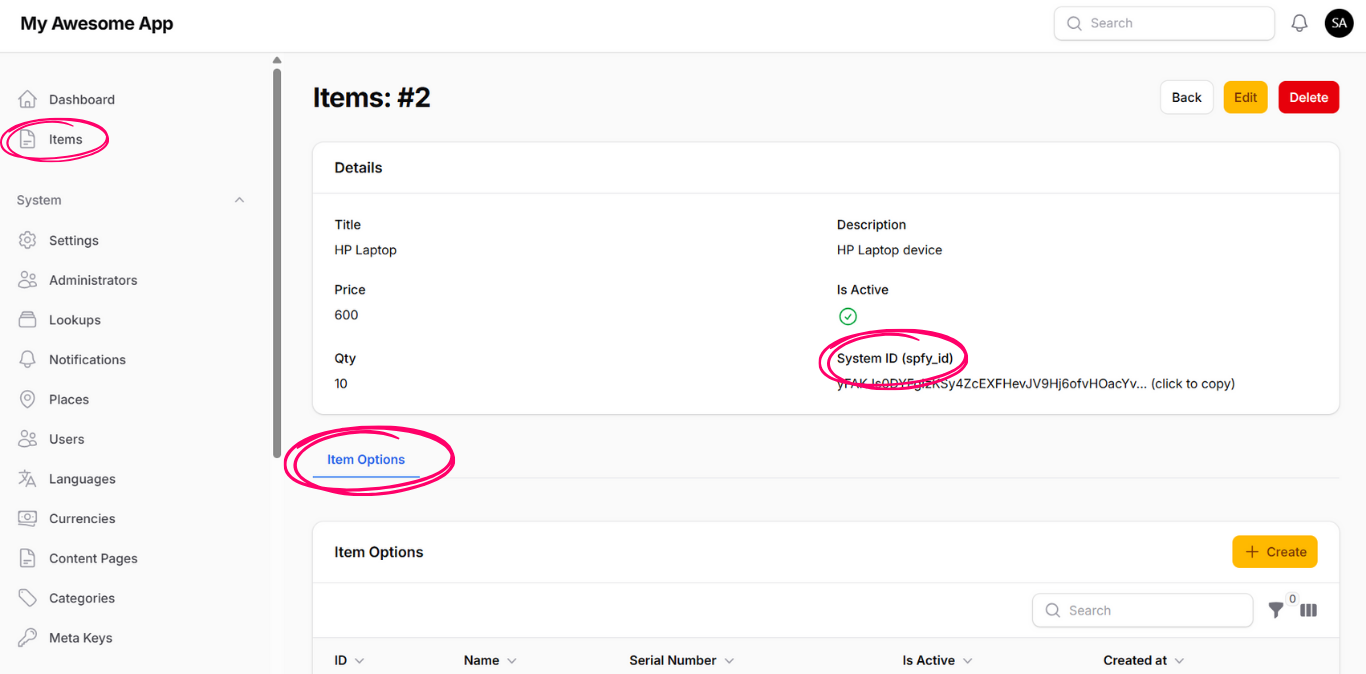
View Page and Inner Pages
Inside the view page, you will see all data related to the selected record.
Each record includes a field called System ID (spfy_id), which is a unique identifier for the record.
It is recommended to use this identifier in APIs instead of the numeric record ID to increase the level of security.
You will also see the relation manager Inner Pages that is defined for this page. From there, you can create, edit, and delete related records. Inner pages also support searching, filtering, and showing or hiding table columns.